

Why Knowing How to Rate a Business on Google Matters More Than You Think
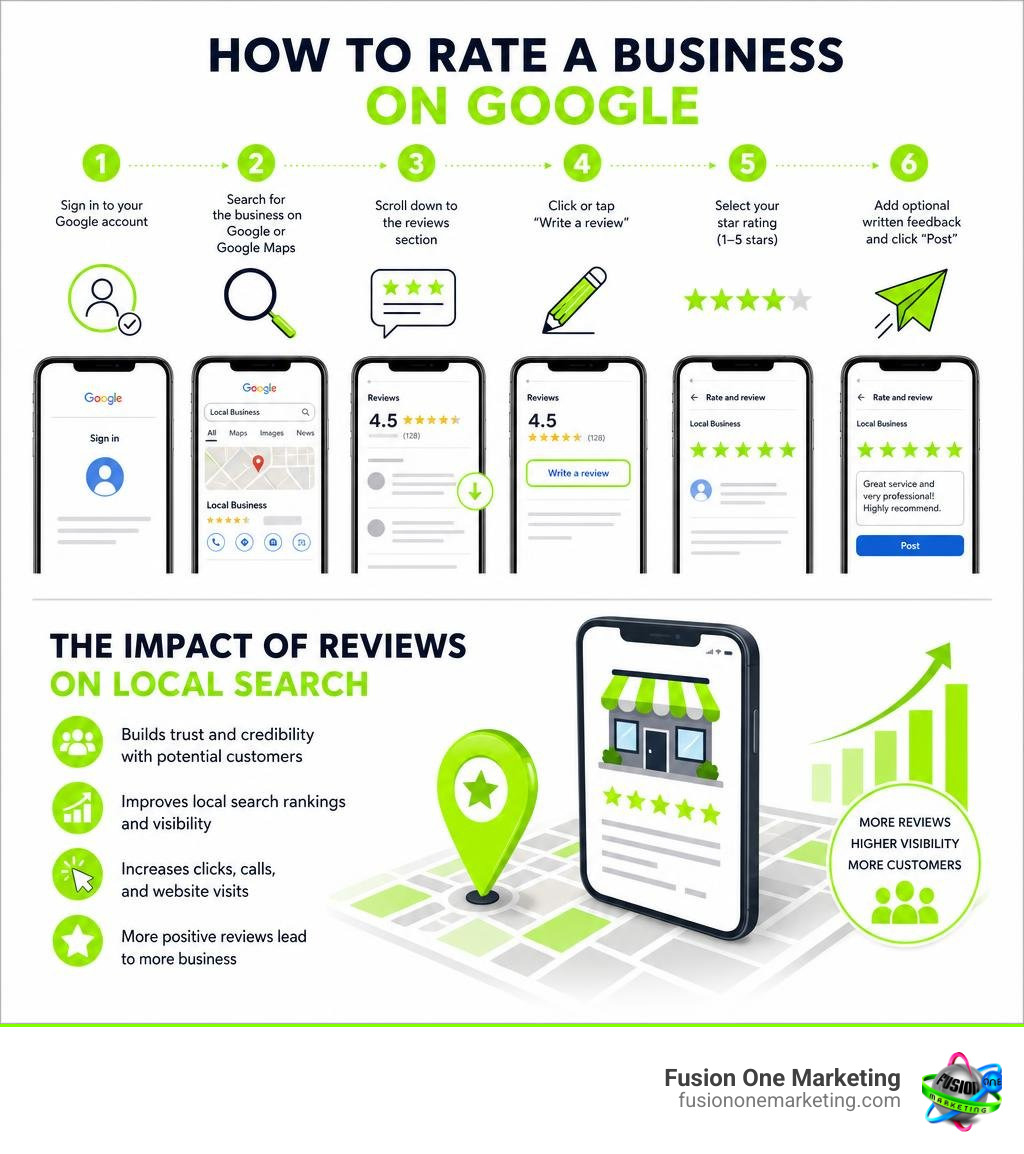
To rate a business on Google, follow these steps:
- Sign in to your Google account
- Search for the business on Google or Google Maps
- Scroll down to the reviews section
- Click or tap “Write a review”
- Select your star rating (1–5 stars)
- Add optional written feedback and click “Post”
That’s it — the whole process takes under two minutes.
But here’s the thing: most customers never do it, not because they don’t want to, but because no one makes it easy for them.
Think about the last time a customer smiled, thanked you, and meant it. They walked out the door — and never left a review. Not because the experience was bad, but because they weren’t given a direct path to do it.
For home service businesses, this gap is costly. A whopping 97% of consumers read online reviews before choosing a local business. And according to consumer research, 4.2 stars or higher is the minimum rating people actually trust. If your review count is low — or zero — you’re losing jobs to competitors before a single phone call is made.
This guide covers everything: how customers leave reviews, how you set up your profile to receive them, and how to turn one good job into a steady stream of five-star feedback.
I’m Rob Humm, co-owner of Fusion One Marketing and a digital marketing specialist with over a decade of experience helping local businesses rank higher through local search strategies — including helping clients rate a business on Google and build the kind of review presence that wins more leads. Let’s walk through exactly how it works.
Key terms for rate a business on google:
Why Google Reviews Matter for Customers and Businesses
When we talk about growing a business in Alabama — whether you are running an HVAC company in Birmingham, a plumbing service in Huntsville, or a landscaping business in Helena — your reputation is your currency. In 2026, that reputation is almost entirely managed through the lens of local search engines.
Understanding Why Online Reviews Are So Important For Your Business comes down to consumer behavior and local search algorithms. A massive 75% of consumers “always” or “regularly” read Google reviews before making a purchase decision. When potential customers see a high volume of positive reviews, it acts as an immediate trust signal.
But reviews do more than just make your business look good; they are a critical ranking factor. Do they affect your visibility? Absolutely. You can read more about this in our deep-dive, Do Google Reviews Impact Your Seo.
Google uses reviews to evaluate the prominence of a business. When users search for services “near me,” Google compiles the top results into what we call the “Local Pack” (or the Map Pack) — the map and three business listings that appear at the very top of the search engine results page. If you want to rank here, you must follow the official Tips to improve your local ranking on Google.
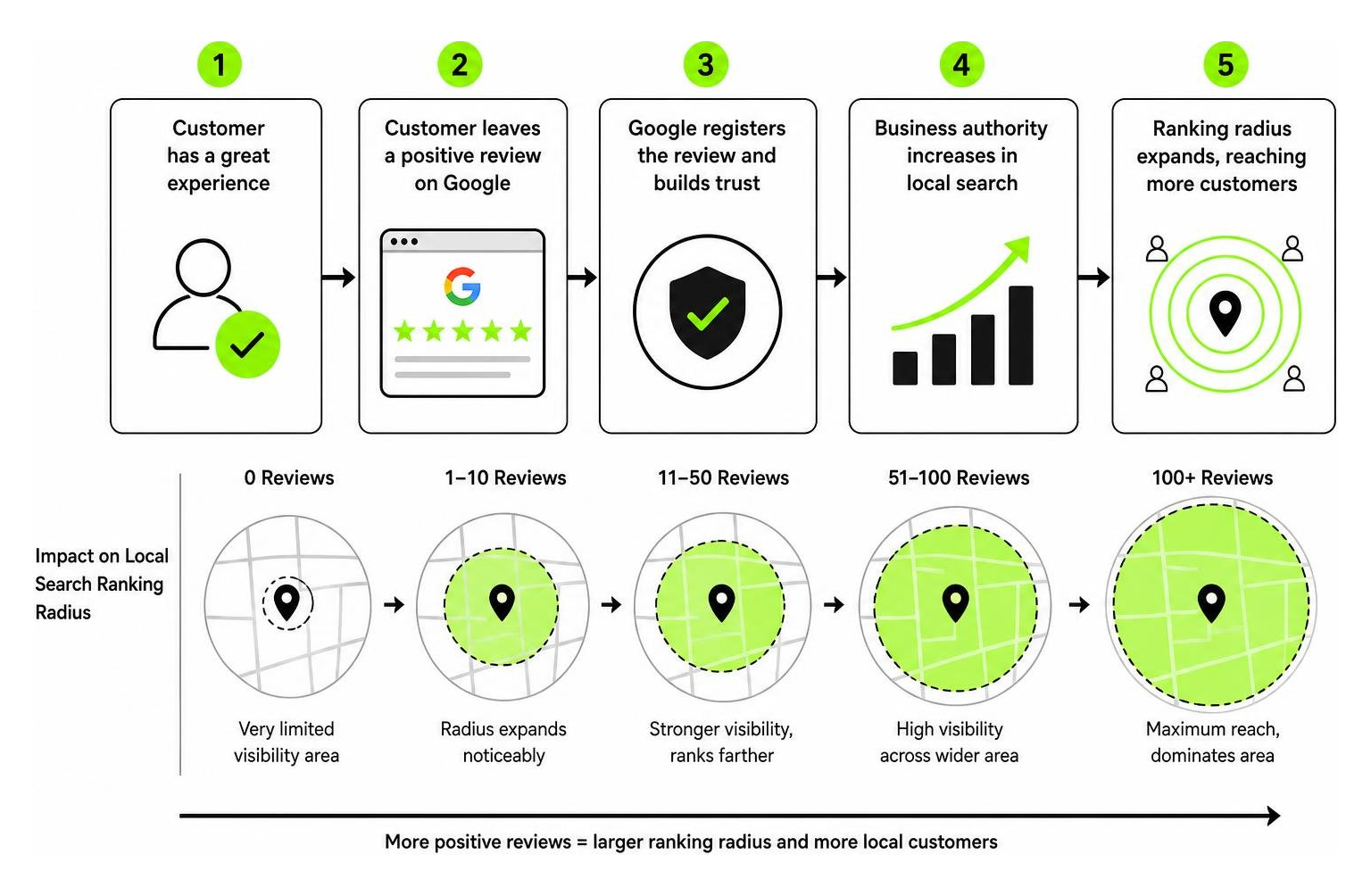
One of the most fascinating aspects of Google reviews is their ability to expand your ranking radius. In local SEO, your physical location typically limits how far away you can rank. However, jumping from zero reviews to a couple dozen reviews actually expands your online radius, allowing your business to rank further away from its physical location.
That reviews have a curve of diminishing returns. Going from 0 to 10 reviews provides a massive, immediate ranking and visibility boost. Going from 100 to 110 reviews is still highly valuable for building customer trust, but the incremental algorithmic boost is slightly less dramatic. This is why getting those first few dozen reviews is absolutely vital for new or growing service providers.
How to Rate a Business on Google on Mobile and Desktop
Leaving a public review requires a Google account. This ensures that the feedback is tied to a real profile, which helps Google weed out spam and policy violators. All reviews posted are public, meaning anyone can see the reviewer’s Google “About me” name and profile photo. Anonymous reviews are not permitted on the platform.
When a customer wants to write a review, they can do so using either a desktop computer or a mobile device. While the ultimate result is the exact same, the navigation differs slightly between platforms.
To keep track of all the reviews you have written, you can access my contributions google reviews to edit, update, or delete your past ratings.
Here is a quick reference table comparing the steps to rate a business on Google across desktop and mobile devices:
| Desktop Step-by-Step | Mobile Step-by-Step |
|---|---|
| 1. Open your web browser and go to Google Search or Google Maps. | 1. Open the Google Maps app or your mobile browser. |
| 2. Search for the business name and location. | 2. Search for the business name. |
| 3. Locate the Business Profile on the right side of the screen (or in the search results). | 3. Tap on the business profile card at the bottom of the screen. |
| 4. Scroll down to the reviews section and click “Write a review”. | 4. Tap on the “Reviews” tab near the top of the business page. |
| 5. Select your star rating, write your review, and add photos if desired. | 5. Tap the empty stars to select your rating. |
| 6. Click “Post” to publish your review. | 6. Write your feedback, add photos, and tap “Post”. |
For official, detailed instructions on managing your submitted reviews, you can consult the Add, edit, or delete Google Maps reviews & ratings – Computer – Google Maps Help page.
How to Rate a Business on Google Using a Computer
When rating a business on a desktop computer, the process is incredibly straightforward.
First, open your preferred web browser and navigate to Google.com or Google Maps. In the search bar, type in the business name and its city (for example, “Fusion One Marketing Birmingham AL”).
Once the search results load, you will see the business’s Google Business Profile on the right-hand side of the desktop screen. Scroll down past the phone number, address, and operating hours until you see the review summary. Click the “Write a review” button.
A pop-up window will appear. Here, you can click the number of stars you want to award the business (from 1 to 5). Below the stars, you can write details about your experience. You can also add helpful photos of the work performed, which is highly appreciated by local service businesses. When you are finished, click the blue “Post” button in the bottom right corner.
How to Rate a Business on Google on a Mobile Device
On mobile, most users will interact through the Google Maps app, which is pre-installed on Android devices and widely used on iOS.
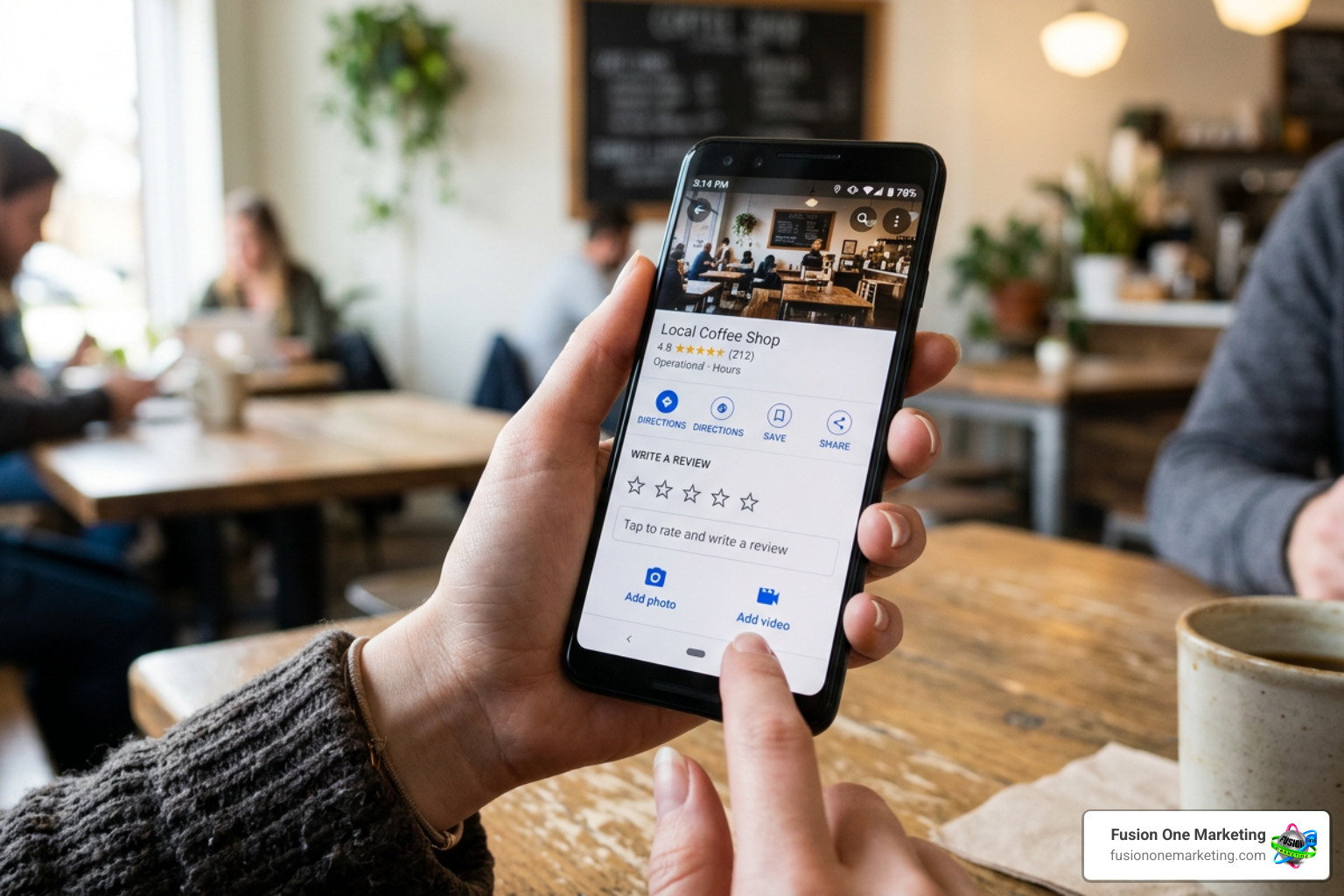
To leave a review on your phone:
- Open the Google Maps app or search in your mobile browser.
- Search for the business name.
- Tap on the business name at the bottom of your screen to expand their full profile.
- Tap the “Reviews” tab.
- You will see five blank stars. Tap the star rating you wish to give.
- A screen will open allowing you to write your review and upload mobile photos directly from your camera roll.
- Tap “Post” in the top right corner.
Mobile reviews also allow users to leave quick “photo updates.” These are visual-only posts showing what a business looks like or the work they did. While photo updates are visible to other searchers, they do not impact the business’s overall numerical star rating.
How Businesses Can Set Up Profiles and Request Reviews
If you are a business owner, you cannot receive reviews until you have a live, verified Google Business Profile (formerly known as Google My Business). Setting this up is entirely free, and there is no downside to claiming your space on the web.
To get started, visit Get Listed on Google – Google Business Profile to claim or create your business listing.
During the setup process, you will enter your business name, address (or service area if you are a home service business without a physical storefront), phone number, website, and operating hours.
Once your details are entered, Google will require you to verify your business. This is usually done via a phone call, text message, email, or a physical postcard sent to your address. Verification is a critical step. Unverified business profiles are locked out of key engagement features, meaning you will not be able to reply to customer reviews until your verification is complete.
Once verified, you can generate a direct review link or QR code to make it as easy as possible for customers to rate your business. To do this, go to your Business Profile dashboard, select “Read Reviews,” and click “Get more reviews.”
Google will provide a short, clean URL (such as https://g.page/r/ or https://maps.app.goo.gl/) that you can copy. You can also download an official QR code directly from this dashboard, as detailed in Create a Google link or QR code to request reviews – Google Business Profile Help.
To maximize your incoming reviews, check out our guide on Top Tips For Requesting Google Reviews From Your Customers. Here are some of our favorite best practices:
- Integrate QR codes physically: Print your custom Google review QR code on paper invoices, estimate sheets, or leave-behind flyers.
- Send SMS requests quickly: Send a follow-up text with your direct review link within 24 hours of completing a service. This is when customer satisfaction and the details of the job are freshest.
- Add links to digital touchpoints: Embed your review link in your email signatures, post-purchase confirmation emails, and at the end of live customer support chats.
- Train your field team: Have your technicians politely ask for feedback in person. A simple, “If you’re happy with our work today, it would mean the world if you scanned this QR code and left us an honest review,” works wonders.
- Never offer incentives: Google strictly prohibits offering discounts, freebies, or gifts in exchange for reviews. Doing so violates their Terms of Service and can lead to your listing being suspended or losing all of your reviews.
Getting Your First Google Review as a New Business
When you are a brand-new business starting out in Birmingham, Huntsville, or Helena, your profile will show a big, blank zero next to your review count. This can be a major hurdle for building trust.
Securing your very first review is a massive credibility milestone. It activates the visual gold star rating next to your business name in local search results, transforming your profile from looking abandoned to looking active.
To navigate this transition, we recommend following the steps outlined in How to Get Your First Google Review (Step-by-Step for New Businesses) | Shoutjar.
Instead of sending out a mass email blast to everyone you know — which can look spammy and set off Google’s review filters — focus on highly personalized outreach. Reach out to one of your very first, happiest customers. Send them a personal text or email, explain that you are a new local business, and ask for their honest feedback.
To lower the barrier to entry, let them know that a short, one-to-two-sentence review is perfectly fine. You don’t need a novel; a simple “Great service, very responsive, would highly recommend!” is more than enough to get your star rating active and start building your local authority.
Managing and Responding to Your Google Reviews
Collecting reviews is only half the battle. Once they start coming in, you must actively manage and respond to them.
According to the official guidelines on how to Manage customer reviews – Google Business Profile Help, responding to reviews shows both existing and potential customers that you value their feedback.
When you reply to a review, the customer who wrote it is immediately notified. They can read your response and even choose to update their original review. When they do, the date of their review will update to show the latest modification.
That Google moderates review replies to ensure they comply with content policies. While most replies publish within 10 minutes, the approval process can occasionally take up to 30 days.
Responding to positive reviews is easy and fun, but handling negative reviews requires a professional, calculated approach. We always recommend reading our guide on How To Turn A Negative Review Into A Positive Experience.
When dealing with a negative review:
- Stay calm and professional: Do not get defensive or engage in an online argument. Your reply is public, and future customers will judge your business based on how you handle criticism.
- Acknowledge and apologize: Acknowledge their frustration and offer a polite apology if appropriate, without taking blame for things outside your control.
- Move the conversation offline: Provide a direct phone number or email address and ask them to reach out to you directly so you can resolve the issue privately. Keep your public reply short and sweet.
- Flag policy violations: If a review is clearly fake, contains offensive language, or violates Google’s content guidelines, do not argue. Click the three dots next to the review, select “Flag as inappropriate,” and report it to Google for removal.
Frequently Asked Questions about Google Reviews
Managing your online reputation can sometimes come with technical hiccups. Here are answers to the most common questions businesses and customers face.
Why is my Google review link not working?
A broken review link is usually caused by one of three things: an unverified profile, an outdated short URL format, or a typo in your Place ID.
If your link is throwing errors or failing to open the review form, consult the Google Review Link Generator: How to Create, Share & Fix Links guide. Make sure you are using the modern, auto-generated short link from your Google Business Profile dashboard rather than copying long, complex URLs from your browser’s address bar. Also, double-check that your profile is fully verified and active.
Why are my Google Business Profile reviews not showing up?
It can be incredibly frustrating when a customer swears they left a review, but it doesn’t appear on your profile.
If this happens, check out our troubleshooting resource, Google Business Profile Reviews Not Showing Up Heres Why.
The most common culprit is Google’s automated spam filter. If a customer leaves a review while connected to your business’s public Wi-Fi, or if they use certain flagged keywords, Google may hold the review for moderation. Additionally, new profiles may experience a moderation delay of 1 to 3 days before new reviews are made public.
Can customers leave a Google review without a Google account?
No, customers must be signed into a Google account to leave a review. This is a security measure to prevent automated bots and fake accounts from manipulating business scores.
However, customers do not need a Gmail address. They can easily register any existing email address (like Yahoo, Outlook, or iCloud) as a Google account to write and manage their public reviews.
Conclusion
Building a strong local online presence doesn’t happen by accident. It requires a consistent, proactive strategy of encouraging your customers to rate a business on Google and then managing those interactions professionally.
At Fusion One Marketing, we help local home service businesses and service providers across Birmingham, Huntsville, and Helena dominate their local markets. Our comprehensive “Digital Domination” program integrates expert local SEO, custom website design, social media management, and targeted PPC campaigns to drive real, measurable growth.
Ready to take your online reputation to the next level? Read our complete blueprint on How to Get More Company Reviews and Grow Your Business, and let us help you build a brand that local customers trust.