

What “Google Reviews Search by Name Free” Actually Means (And How to Do It)
Google reviews search by name free is something a lot of business owners want to do — and for good reason. Before we dive deep, here’s the quick answer:
How to search Google reviews by name for free:
- Google Maps keyword search — Open Google Maps, find the business, click the Reviews tab, then tap the magnifying glass icon and type the reviewer’s name.
- Browser Find (Ctrl+F / Cmd+F) — On desktop, scroll through the reviews to load them, then use your browser’s Find function to search for a specific name.
- Google Search operators — Search
"reviewer name" "business name" site:google.com/mapsto surface specific reviews in Google Search. - Google Business Profile dashboard — Business owners can use the search icon inside the Reviews tab of their Google Business Profile to filter reviews.
Important: Google does not have a built-in “search by name” filter. All of the methods above are free workarounds — and this guide walks through each one.
You’ve probably been there. A customer calls to say they left you a glowing review, or someone mentions a complaint you never saw — and now you’re scrolling endlessly through hundreds of reviews trying to find it. It shouldn’t be this hard.
With Google hosting over 80% of all online business reviews, and 83% of consumers using Google to evaluate local businesses before visiting, what customers write about you matters enormously. Being able to find and respond to specific reviews isn’t just convenient — it’s essential for running your reputation well.
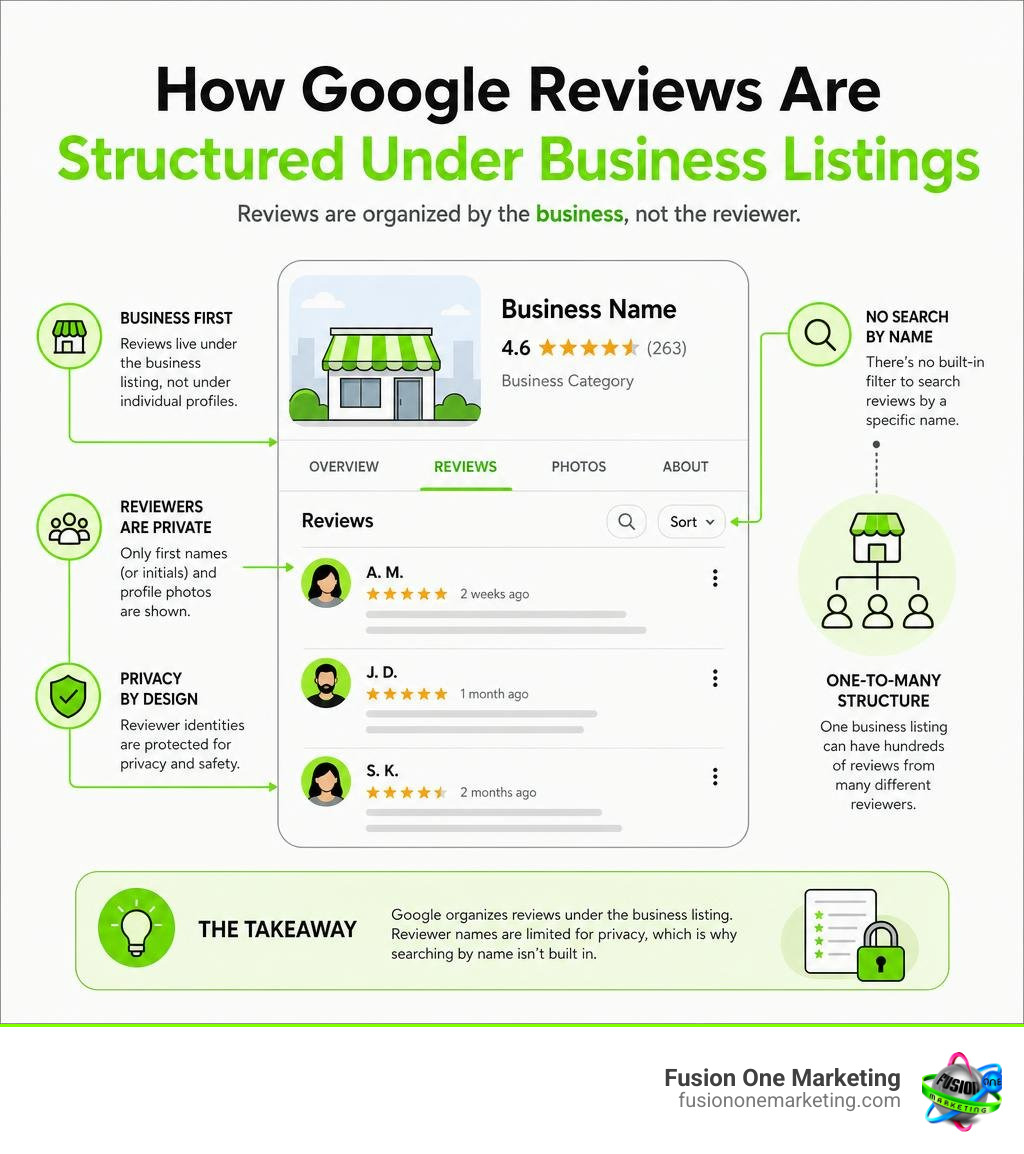
The challenge is that Google’s review system is built around business listings, not reviewer identities. That structural decision, combined with ongoing privacy updates, makes searching by name trickier than most people expect.
I’m Rob Humm, co-owner of Fusion One Marketing and a digital marketing specialist with over a decade of experience helping local businesses improve their online visibility and reputation. I’ve worked directly with google reviews search by name free methods as part of building local search strategies for home service businesses, and I’ll walk you through exactly what works. Let’s get into it.
Why Search Google Reviews by Name?

For local businesses throughout Alabama — whether you are running an HVAC business in Birmingham, a plumbing service in Huntsville, or a landscaping company in Helena — keeping a pulse on customer sentiment is the lifeblood of your growth. When someone takes the time to leave feedback, they are handing you valuable intelligence.
But why would you specifically need to seek out a review using a person’s name? Why not just scroll through your latest notifications?
Understanding the “why” behind name-based searches is the first step toward masterfully managing your online presence. It goes far beyond simple curiosity; it is a core pillar of proactive brand monitoring and active reputation management. If you want to understand the larger picture of why these digital footprints dictate your success, take a look at our guide on Why Online Reviews Are So Important for Your Business.
Identifying Specific Customer Experiences
The most common reason we see business owners trying to execute a google reviews search by name free is to connect an online comment with a real-world transaction.
Imagine you run an air conditioning repair company in Huntsville, AL. You receive a review from a customer named “Sarah Jenkins” praising a technician for saving her home from a sweltering July afternoon. To reward that technician or to log the positive feedback in your customer relationship management (CRM) system, you need to find Sarah’s review, match it to her service ticket, and confirm which technician handled the call.
Conversely, if “John Doe” leaves a 2-star review complaining about a leaky pipe repair, finding his review quickly allows you to look up his contact information in your database. This personalized feedback lets you reach out directly, address his specific dispute, and offer a targeted resolution. Without the ability to locate reviews by name, personalized customer service and fast dispute resolution become incredibly difficult.
Spotting Spam and Competitor Manipulation
The internet is a wild place, and not every review left on your Google Business Profile is genuine. Sometimes, businesses fall victim to fake reviews, spam bots, or even underhanded tactics from unethical competitors.
Searching reviews by name helps you run a quick competitor analysis and spot suspicious review patterns. If you notice a sudden influx of 1-star reviews, searching those reviewer names can reveal whether they are real local residents in Helena, AL, or completely fabricated accounts.
By analyzing the names and clicking through to their profiles, you can perform spam detection. If “Alex Smith” has left twenty 1-star reviews for home service companies across the United States in the span of 24 hours, you have clear evidence of a fake review. Armed with this information, you can flag the review to Google with a strong case for its removal.
The Reality of Google Reviews Search by Name Free Tools
If you have spent any time searching for a simple “Search by Reviewer” text box on your Google Business Profile, you have probably ended up empty-handed and slightly frustrated. You are not alone.
The reality is that Google does not provide an open directory where you can type in a person’s name and see every review they have ever written across the web. To understand how to find this information for free, we have to look at how Google protects user data and structures its Maps ecosystem.
Why a Native Google Reviews Search by Name Free Tool Doesn’t Exist
Google’s platform structure is designed around local discovery. When a user writes a review, that data is treated as metadata attached directly to the business listing. Google’s database is optimized to show users where to buy a product or service, not who is talking about it globally.
Furthermore, user privacy is a massive priority for Google. If any person could easily search another individual’s name and pull up a neat, chronological list of every restaurant, dentist, plumber, or retail store they have ever visited and reviewed, it would present significant safety and privacy concerns. Because of this, Google intentionally limits global, name-based review searches.
For a deeper dive into the technical mechanics of how these listings handle reviewer profiles, check out Google Reviews Search by Name: The Complete Guide.
How the November 2025 Pseudonym Update Impacts Name Searches
Adding another layer of complexity to our search efforts is a major privacy update that Google rolled out in November 2025.
Prior to this update, Google reviews were strictly tied to the real name associated with a user’s Google Account. If a user’s account name was “Robert Harrison,” their reviews displayed as “Robert Harrison.”
However, the November 2025 update introduced robust pseudonym and display name options. Users can now choose to display highly abbreviated names, handles, or completely anonymous pseudonyms (such as “R.H.” or “LocalHomeowner205”) on Google Maps.
As we navigate through July 2026, this change means that searching for a customer by their real, legal name might yield zero results if they have opted to protect their privacy with a pseudonym. Business owners must now look for contextual clues within the review text rather than relying solely on matching exact real names.
How to Perform a Google Reviews Search by Name Free

Even with Google’s structural limitations and privacy guardrails, you do not need to purchase expensive software to find the reviews you are looking for. There are highly effective, completely free manual workarounds that get the job done.
The success of these methods often depends on the device you are using. Desktop browsers offer significantly more search flexibility than mobile apps. Let’s compare what works across different platforms:
| Search Method | Desktop Browser | Mobile Google Maps App | Mobile Browser (Request Desktop) |
|---|---|---|---|
| Ctrl+F / Cmd+F (Find on Page) | Yes (Full Capability) | No | Yes (Limited) |
| Google Maps Magnifying Glass | Yes | Yes | Yes |
| Google Search Operators | Yes (Highly Effective) | No | Yes |
| Google Business Profile Dashboard | Yes (Direct Search) | Yes (Via Merchant App) | Yes |
Step-by-Step: Google Reviews Search by Name Free on Desktop
The absolute most reliable, zero-cost way to find a review by name is using a desktop browser (like Google Chrome, Safari, or Firefox) combined with the classic “Find on Page” trick.
Here is exactly how to do it:
- Open Google Maps: Go to maps.google.com on your desktop computer.
- Search Your Business: Type your business name (e.g., your Helena-based landscaping business) and open your business listing.
- Navigate to Reviews: Click on the star rating or scroll down and click on the “Reviews” tab to open the full list of reviews.
- Scroll to Load: This is the secret step. Google Maps only loads a small batch of reviews at a time. Scroll down through the list of reviews repeatedly. Keep scrolling until you have loaded a substantial chunk of your history (or all of it, if you have under 200 reviews).
- Trigger the Find Tool: Press
Ctrl + Fon Windows orCmd + Fon Mac. A small search bar will pop up in the corner of your browser. - Type the Name: Enter the name of the reviewer you are looking for. Your browser will instantly highlight any matching text on the page, allowing you to jump straight to their review.
Using Google Search Operators to Find Specific Reviewers
If you don’t want to scroll through hundreds of reviews manually, you can use Google’s own search engine to crawl Google Maps for you. By using advanced search operators, you can tell Google to search for exact matches.
To find a specific reviewer, go to the standard Google search homepage and type your query using this exact formula:
"reviewer name" "your business name" site:google.com/maps
For example, if you want to find a review by “David Miller” for a business named “Huntsville Plumbing Pros”, your search query would look like this:
"David Miller" "Huntsville Plumbing Pros" site:google.com/maps
By putting the reviewer’s name and your business name in quotation marks, you are telling Google to look for those exact phrases. The site:google.com/maps operator restricts the search results exclusively to Google Maps URLs. If the review exists and is indexed, Google will surface the exact link to that contribution in the search results.
Searching Google Reviews by Keyword Instead of Name
While finding a specific person’s name is highly useful, searching your reviews by keyword is often an even more powerful strategy for managing your business.
Google actually makes keyword searching incredibly easy. Inside the Reviews tab of any business listing on Google Maps, you will see a small magnifying glass icon. Tapping this icon opens a search bar that allows you to filter the reviews of that specific business by any word or phrase.
If you want to see how Google outlines this native search functionality, you can read the official How to Search Google Reviews guide on the Google Business Profile Community.
Why Keyword Filtering is Often Superior to Name Searches
Keyword filtering allows you to identify broad feedback patterns and evaluate specific aspects of your service quality.
Instead of searching for “Sarah Jenkins,” you can search for keywords like:
- “AC installation” or “furnace” to see what customers think of your specific heating and cooling services.
- “Steve” or “Chris” to track the performance of individual staff members and technicians.
- “Price”, “expensive”, or “quote” to understand how local customers in Birmingham, AL perceive your pricing structure.
This is also a goldmine for competitor analysis. You can pull up a competitor’s Google Maps listing in Helena, AL, use the magnifying glass to search for “rude” or “late,” and instantly see where their customer service is failing. This gives you a clear roadmap of how to position your own business to win over those dissatisfied customers. To understand how to leverage these insights to build a bulletproof local reputation, explore our thoughts on The Importance of Online Reviews.
Free Browser Extensions and Tricks for Keyword Searches
If you want to go beyond the basic magnifying glass search, there are free browser extensions and developer tools that can supercharge your review analysis.
One highly popular tool is the GMB Everywhere Chrome extension. It adds a “Review Audit” button directly to any Google Business Profile you view on Google Maps. With a single click, you can run a free basic audit that groups reviews by common keywords, filters them by star ratings, and highlights trends without requiring you to do any manual scrolling.
For those with a technical background, there are even open-source command-line interface (CLI) tools, such as the google-reviews-pp-cli tool hosted on GitHub. These tools allow you to bypass official paid APIs and extract up to 300 reviews from a business’s unique Customer Identification (CID) number, exporting the review text, ratings, and reviewer names into structured JSON data or spreadsheets for easy filtering.
Managing and Finding Your Own Google Reviews
So far, we have focused heavily on how to find other people’s reviews. But what if you need to find a review that you wrote in the past?
Whether you want to update a rating, edit your feedback because a business made things right, or completely delete an old review, Google provides a straightforward hub to manage your personal contribution history. If you are on the receiving end of a bad review and want to know how to guide a customer to edit their feedback, our guide on How to Turn a Negative Review into a Positive Experience is a must-read.
How to View a Specific Reviewer’s Full History
Every Google user who leaves a public review has a dedicated public contributor profile.
If you are looking at a review on your business listing, you can click on the reviewer’s name or profile picture. If their profile settings are set to public, Google will take you to their contributor page. Here, you can view:
- Their total number of reviews and ratings.
- Their Local Guide level (if they participate in the program).
- A map of all the locations they have reviewed.
This profile history serves as an excellent trust signal. A profile with a history of detailed, constructive reviews across various local establishments in Alabama is highly credible. On the other hand, a profile with zero profile picture, a generic name, and only one single 1-star review is a major red flag for a fake account.
How Business Owners Can Search Reviews in Their Dashboard
If you are a verified business owner, you do not have to rely on public-facing workarounds to manage your feedback. You have a dedicated merchant dashboard designed to make review tracking simple.
To access and search your reviews as a business owner:
- Log into the Google Account associated with your Google Business Profile.
- Search for your exact business name in Google Search.
- You will see a merchant control panel. Click on Read reviews or Reviews.
- Inside this dashboard, you can use the built-in search icon to filter reviews by customer name, rating, or specific keywords.
- From here, you can reply directly, flag inappropriate reviews, or track your overall rating trends.
Keeping a close eye on this dashboard is the foundation of local business growth. If you are wondering whether you should invest in professional help to scale this process, read our comprehensive breakdown: Reputation Management: What It Is & Do You Need It?.
Limitations and Best Practices for Review Tracking
While the free methods outlined in this guide are incredibly powerful, they do have limitations. To save yourself time and frustration, keep these challenges and best practices in mind:
- The Common Name Trap: Searching for a highly common name like “Michael Smith” or “Sarah Johnson” on a business listing with thousands of reviews will return dozens of matches. In these cases, look for contextual clues in the review (like the date, the specific services mentioned, or the profile picture) to verify you have the right person.
- Respect Privacy Settings: Some users choose to keep their contributor profiles private. If a profile is private, you will not be able to see their review history, even if you can find their individual review on your listing.
- Keep Up with Volume: If your business is generating dozens of reviews a week, manual tracking using Ctrl+F can become highly time-consuming. Establish a weekly routine to check your Google Business Profile dashboard so you never fall behind.
- Always Respond Professionally: No matter how you find a review — whether it’s a glowing 5-star compliment or a frustrating 1-star complaint — always respond promptly, politely, and professionally. Your response isn’t just for the reviewer; it is for the hundreds of prospective customers who will read it in the future.
Frequently Asked Questions about Google Review Searches
Can I search Google reviews by name on the mobile app?
The native Google Maps mobile app is highly optimized for quick searches, but it has limitations when it comes to searching reviews. While you can use the magnifying glass icon inside the Reviews tab of a business listing to search for keywords, typing a reviewer’s exact name into this field rarely works because Google treats names as metadata rather than review text.
The Workaround: Open your mobile device’s web browser (like Safari or Chrome), navigate to Google Maps, and select “Request Desktop Website” in your browser settings. From there, you can load the reviews and use the browser’s native “Find on Page” feature to search for the name.
How do I find my own past Google reviews?
To find, edit, or delete reviews you have written in the past, open Google Maps on your computer or mobile device. Make sure you are signed into your Google Account. Click on the menu icon (three horizontal lines) or your profile picture in the top corner, and select Your contributions. Click on the Reviews tab, and you will see a complete, chronological list of every review and rating you have ever posted. For official, step-by-step instructions on managing your ratings, visit the Add, edit, or delete Google Maps reviews & ratings – Computer help page.
Can business owners delete negative reviews they find by name?
No. Business owners do not have the ability to directly delete any Google review, regardless of whether it is positive or negative. Google maintains strict control over its platform to ensure reviews remain unbiased.
If you find a negative review that you believe is fake, malicious, or violates Google’s Terms of Service (such as containing offensive language or personal harassment), you can click the three dots next to the review and select Flag as inappropriate. Google’s support team will review the flag and remove it if it violates their policies. For legitimate customer complaints, the best course of action is always to post a professional reply and attempt to resolve the issue directly.
Conclusion
Managing your online reputation does not have to cost a fortune. By mastering a few simple, free techniques — like utilizing desktop browser search shortcuts, leveraging advanced Google Search operators, and navigating your Google Business Profile dashboard — you can easily track down specific customer feedback and keep your business moving in the right direction.
At Fusion One Marketing, we know that managing your local search presence is a full-time job. Between running service calls in Birmingham, managing technicians in Huntsville, and growing your brand in Helena, finding the time to monitor reviews, optimize your website, and run high-converting ad campaigns can be overwhelming.
That is where we come in. Our signature “Digital Domination” program is an all-in-one digital marketing solution designed specifically for home services and local businesses. We handle your SEO, website design, social media, and PPC campaigns as a single, integrated strategy to drive measurable, long-term growth.
If you are ready to take control of your online reputation and start turning searchers into loyal customers, let’s talk. Explore our top strategies on How to Get More Company Reviews and Grow Your Business, or connect with our team today to start dominating your local market!