

Quick Walkthrough: How to Add a Review on Google
Whether you are looking to praise a great experience or provide constructive feedback, learning how to rate a business on google in under two minutes saves you time and ensures your voice is heard.
When you search for a business on desktop or mobile, Google displays a dedicated Business Profile on the right side of the page (known as the Knowledge Panel) or within the Google Maps interface. This profile contains all essential business information, including contact details, operating hours, photos, and customer feedback.
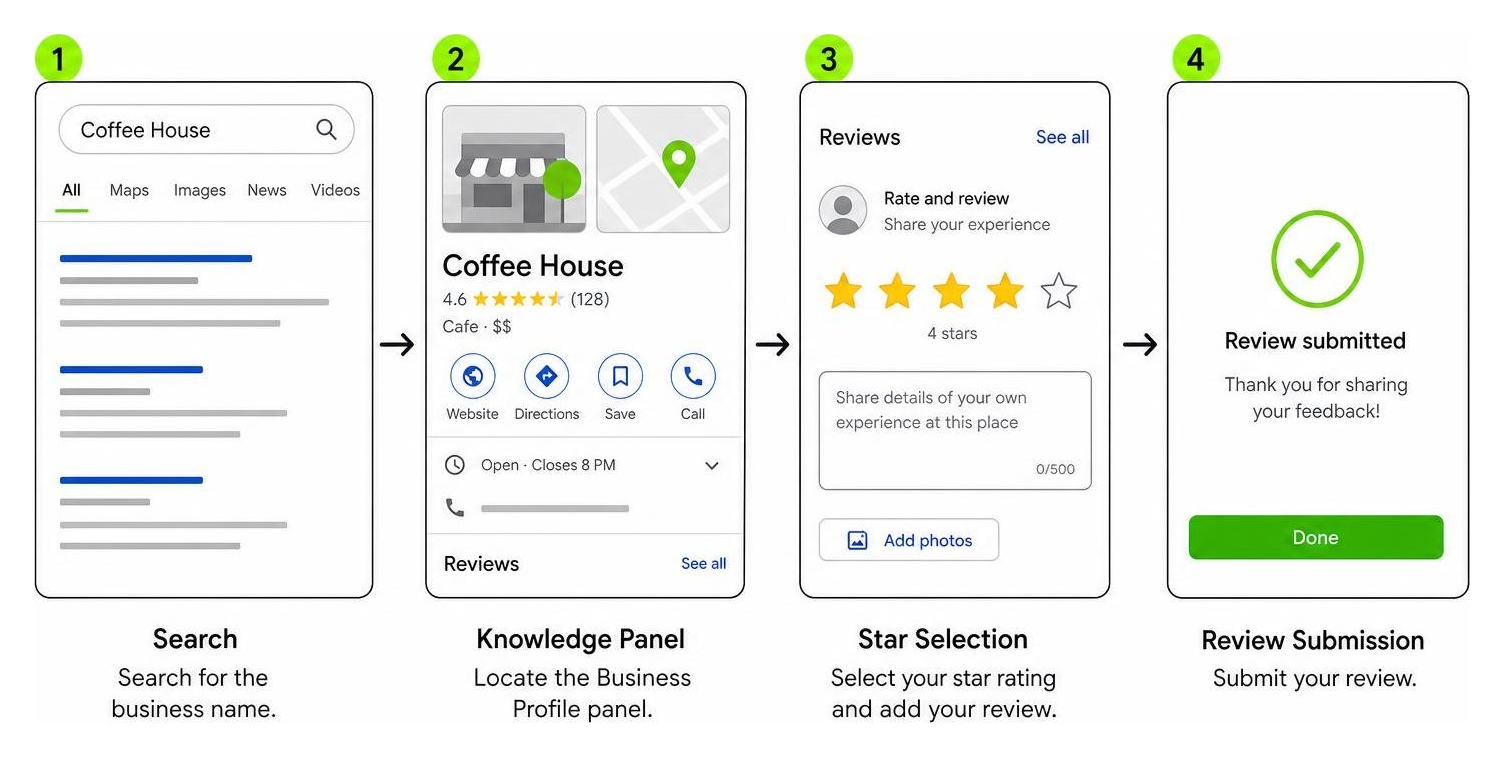
To leave a quick rating:
- Search for the business name on Google.
- Locate the Business Profile panel.
- Scroll down to the Reviews section.
- Select your desired star rating on a 1-to-5 scale, add your thoughts, and submit.
How to Add a Review on Google via Mobile App and Browser
Most consumers prefer using their mobile devices to leave quick ratings while on the move. You can submit feedback through the standalone Google Maps application or directly inside a mobile browser like Chrome or Safari.
Using the Google Maps App (Android and iOS):
- Open the Google Maps app on your phone or tablet.
- Type the business name into the search bar at the top and select the correct listing.
- Tap the business name or address at the bottom of the screen to expand the full profile.
- Tap the Reviews tab near the top of the listing.
- Tap the empty stars under “Rate and review” or tap Write a review.
- Tap the stars to select your score (1 star being poor, 5 stars being excellent).
- Type your honest experience into the text box.
- Tap Add photos if you wish to attach images of your service or purchase.
- Tap Post in the top right corner to publish.
You can also use the Contribute tab at the bottom of the Google Maps app to view recently visited places and quickly leave reviews for businesses you have visited recently.
Using a Mobile Browser:
- Open Chrome, Safari, or your preferred mobile internet browser.
- Go to Google.com and search for the business.
- Locate the profile card in the search results and tap the Reviews tab.
- Select your star rating, draft your feedback, and tap Post.
How to Add a Review on Google Using Desktop Computers
Writing a review from a laptop or desktop computer provides a comfortable layout for typing longer, detailed feedback. You can access the review panel via standard Google Search or desktop Google Maps.
Follow these official steps outlined in the Add, edit, or delete Google Maps reviews & ratings – Computer – Google Maps Help guide:
- Open your desktop web browser and navigate to Google or Google Maps.
- Type the name and location of the business into the search box.
- On Google Search, find the Knowledge Panel on the right side of your screen. On Google Maps, locate the business card on the left panel.
- Scroll down until you see the Write a review button.
- A popup window will appear on your screen. Click on the 1-to-5-star scale to set your rating.
- Write your feedback in the box provided. You can include specific details about customer service, pricing, or product quality.
- Click the camera icon to upload relevant photos or videos from your computer.
- Click Post to publish your review publicly.
Account Requirements and Privacy Guidelines for Google Reviews

To maintain platform integrity and combat automated spam, Google requires users to be logged into an active Google Account before submitting feedback. However, having a Google Account does not mean you need a @gmail.com email address.
Leaving a Review Without a Gmail Account
You can register a Google Account using your existing email address from third-party providers such as Yahoo, Outlook, or iCloud.
Here is how to set it up:
- When prompted to sign in to leave a review, click Create account.
- Choose For my personal use.
- Instead of filling out a new Gmail handle, click Use your existing email address.
- Enter your Yahoo, Outlook, or work email address, verify it via the confirmation code sent to your inbox, and complete account creation.
Privacy and Display Names
When you publish a review, it becomes publicly visible to anyone browsing Google Search or Maps. Google does not support completely anonymous reviews to prevent malicious spam and review manipulation.
When your review goes live, the following details are visible to the public:
- The display name associated with your Google Account “About me” page.
- Your Google profile photo (if uploaded).
- Any photos or videos attached to the review.
- Your history of other public Google Maps reviews (unless hidden in settings).
If you prefer not to display your full legal name publicly, you can edit your Google Account display name to display your first name and last initial, or a nickname. Simply visit myaccount.google.com, go to Personal Info, and update your name settings before posting.
Non-Purchase Customer Experiences
Can you leave a review if you didn’t buy anything? Yes. Google allows consumers to leave feedback regarding customer service interactions, phone inquiries, site visits, or quotes, even if no financial transaction occurred. As long as your review reflects a genuine, interaction with the business, it complies with Google’s policies.
Editing, Deleting, and Fixing Missing Review Options
If you made a typo, selected the wrong star rating by accident, or wish to update your feedback after a business resolved an issue, Google allows you to edit or delete your existing reviews at any time.
How to Edit or Delete Your Review
You can modify or permanently remove your feedback across desktop or mobile:
- Open Google Maps on your computer or mobile device.
- Ensure you are signed into the account used to post the original review.
- Click or tap the Menu (or your profile picture icon) and select Your contributions.
- Select the Reviews tab to see a complete history of every review you have written.
- Find the review you wish to change and tap the three-dot menu icon next to it.
- Select Edit review to change your star rating, text, or photos, then click Post.
- Select Delete review to remove the review entirely.
Note: When you edit an existing review, the published date will update to reflect the date the edit was saved.
Fixing a Missing “Write a Review” Button
Sometimes, you might search for a business and find that the “Write a review” option is missing entirely. If you encounter this issue, review these potential causes:
- Unverified Profile: The business listing may not be fully verified or active on Google Maps.
- Category Restrictions: Certain sensitive business categories or institutional listings restrict public review submissions.
- Temporary Suspension: Google may disable review features temporarily if a business profile experiences an unusual surge of suspicious review activity.
- Technical Glitches: Browser caching issues or account permissions can hide the review prompt. Try clearing your browser cache or switching to the mobile Google Maps app.
If your own reviews are disappearing after submission, check out our guide on google business profile reviews not showing up heres why for an in-depth breakdown of moderation triggers.
Review Moderation, Policies, and Business Request Tools
Google relies on sophisticated automated screening systems to analyze incoming reviews before and after they publish. An estimated 80% to 90% of submitted reviews appear publicly within 2 hours. However, automated moderation filters can take up to 24 to 48 hours to evaluate posts flagged for review.
Why Google Moderates or Removes Reviews
Google automatically filters and removes content that violates its User-Generated Content policies. Key triggers for automatic removal include:
- Inclusion of phone numbers, email addresses, or website URLs in the review text.
- Use of profanity, hate speech, or harassment.
- Duplicate reviews posted across multiple accounts.
- Obvious conflicts of interest (e.g., reviewing your own business or a direct competitor).
- Reviews generated from brand-new, unverified Google accounts created strictly for rating.
Rules on Review Incentives for Businesses
Google strictly prohibits businesses from offering financial incentives, discounts, gifts, or free services in exchange for customer reviews. As stated in Tips to get more reviews – Google Business Profile Help, asking for feedback must remain objective. Businesses cannot “gate” reviews by routing negative feedback away while pushing positive feedback to Google, nor can they pay for positive reviews.
Tools for Businesses: Links and QR Codes
To make leaving feedback effortless for customers, businesses should eliminate search friction by providing direct review links and physical QR codes.
Businesses can generate a direct review link inside their Google Business Profile manager under “Ask for reviews” or use a Google Place ID generator. Converting this link into a scannable QR code allows local contractors, restaurants, and retail shops to collect reviews directly in the field or on printed receipts.
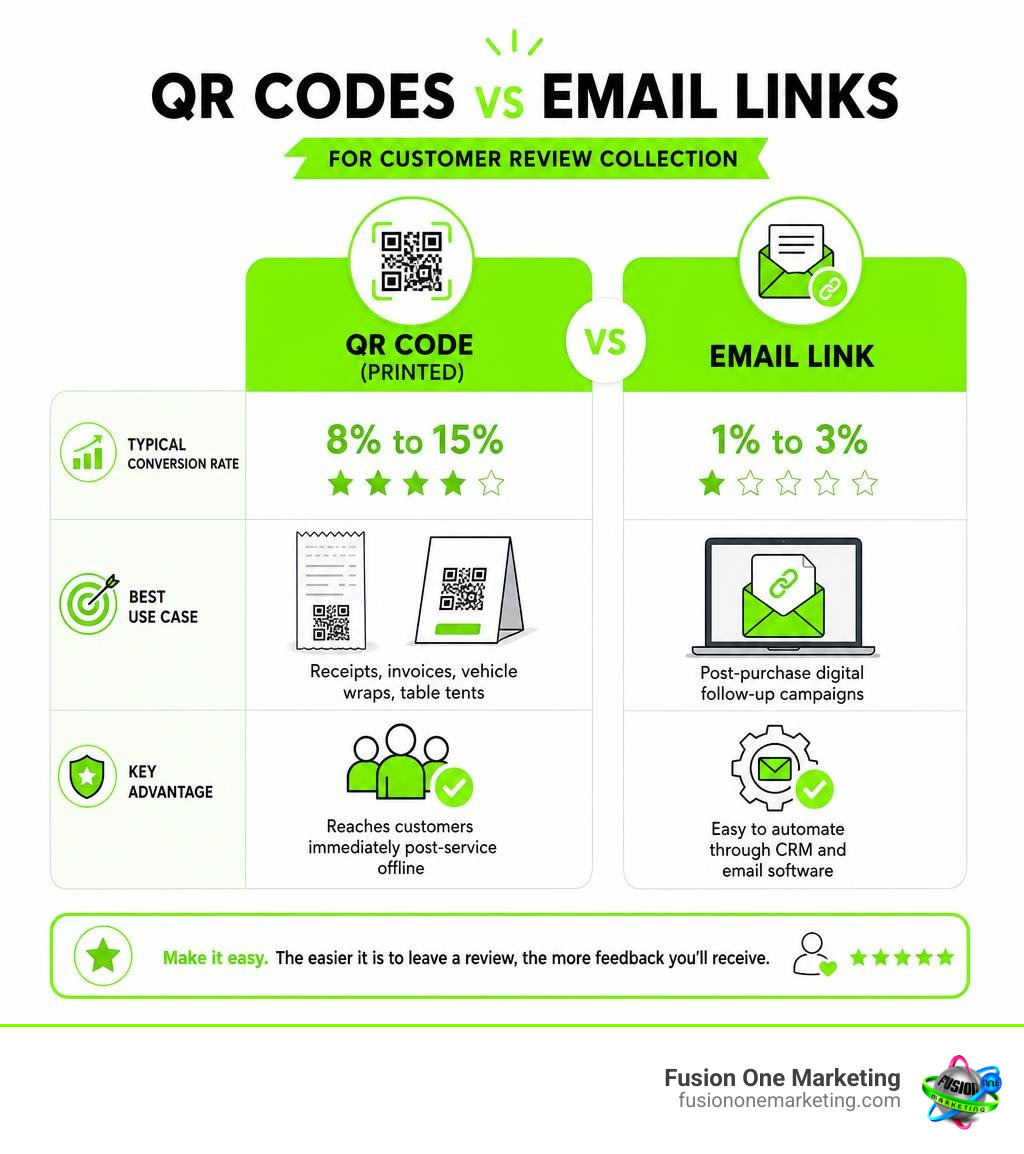
| Collection Method | Typical Conversion Rate | Best Use Case | Key Advantage |
|---|---|---|---|
| QR Code (Printed) | 8% to 15% | Receipts, invoices, vehicle wraps, table tents | Reaches customers immediately post-service offline |
| Email Review Link | 1% to 3% | Post-purchase digital follow-up campaigns | Easy to automate through CRM and email software |
If you want to create custom physical review assets, read our tutorial on how to get a rate us on google sticker with a qr code.
The SEO Impact of Google Reviews
Does feedback really affect search engine performance? Absolutely. You can learn more about how do google reviews impact your seo across competitive local markets.
Research shows that:
- Over 81% of consumers use Google to evaluate local businesses.
- Google uses review recency, volume, and score as primary local ranking signals.
- Reviews featuring photos get 2 to 3 times the click-through rates of text-only reviews.
- Review freshness matters heavily: receiving 5 to 10 steady reviews monthly provides far greater ranking value than having 200 stagnant reviews from three years ago.
Frequently Asked Questions
Can a business delete a negative Google review?
No. Business owners do not have the technical ability to directly delete customer reviews from their Google Business Profile. If a review is negative but legitimate, the business owner can only reply publicly to address the issue. If a review violates Google’s policies (e.g., fake reviews, profanity, spam), the business owner can flag the review for Google moderation to request its removal.
Why is my published review taking several days to appear?
While 80-90% of reviews publish within 2 hours, automated spam filters may hold certain reviews for 24 to 48 hours for secondary screening. Delays occur frequently if the review contains flagged words, if the account is very new, or if the review was posted in a sensitive business category (such as medical, legal, or financial services).
Can I leave a review without selecting a star rating?
No. Selecting a 1-to-5-star rating is a required field in Google’s review submission form. You cannot publish written text or photo uploads without selecting a star score first.
Conclusion
Knowing how to add a review on google enables consumers to support local businesses while giving prospective customers the insights they need to make smart buying decisions. For local business owners, actively encouraging customer feedback creates a reliable loop of social proof that boosts local SEO visibility and drives quote requests.
At Fusion One Marketing, our all-in-one Digital Domination program helps home service providers and local companies optimize their Google Business Profiles, generate consistent customer feedback, and expand their online presence. Contact us today to discover how to get more company reviews and grow your business.