

What is a “Rate Us on Google” Sticker and How Does It Work?
At its core, a rate us on Google sticker is a physical or digital call-to-action (CTA) designed to bridge the gap between real-world customer interactions and your online reputation. It acts as a visual prompt that reminds happy customers to share their experiences.
But how does it work in practice?
Modern review stickers rely on two primary technologies to make the review process as seamless as possible:
- QR Codes (Quick Response Codes): A customer opens their smartphone camera, points it at the QR code on the sticker, and is instantly redirected via a secure link to your business’s Google review submission page.
- NFC Technology (Near Field Communication): Some premium stickers embed a tiny microchip. A customer simply taps their phone against the sticker—no camera app required—and the review page pops up instantly.
By removing the manual steps of searching for your business name on Google Maps, navigating to the reviews tab, and clicking “Write a review,” these stickers capitalize on the moment of peak customer satisfaction. When the process takes less than ten seconds, customers are far more likely to follow through.
Understanding Why Online Reviews Are So Important for Your Business is crucial here. Reviews do not just build trust; they feed Google’s local search algorithm. More positive reviews tell Google that your business is active, reliable, and highly regarded, which directly boosts your local search rankings.

Physical vs. Digital Stickers
While we usually think of a rate us on Google sticker as something you peel and stick onto a countertop, these assets exist in both physical and digital formats. Each serves a distinct purpose in your marketing strategy:
- Physical Stickers: These are high-visibility, tangible items placed in your brick-and-mortar locations. They are perfect for storefront windows, checkout counters, service vehicles, and customer-facing documents.
- Digital Stickers: These are digital graphics designed to mimic the look of physical stickers. You can embed them into your website widgets, email signatures, social media posts, and digital receipts.
Combining both formats ensures that whether a customer interacts with you in person at your office in Birmingham, AL, or browses your service page from their home in Huntsville, they are never more than a click or a tap away from leaving you a 5-star rating.
How to Get or Create Your Google Review Stickers
If you are ready to put this powerful tool to work, you have two main routes: you can source official materials directly through Google, or you can design and print custom stickers that match your unique brand identity.
Let’s break down how to execute both approaches, ensuring you know exactly How to Get a “Review Us on Google” Sticker that works for your business.
Eligibility for Official Google Marketing Kits
Google provides free marketing materials to verified businesses through its official Google Business Profile Marketing Kit. However, you must meet certain eligibility requirements to access these resources:
- Verified Google Business Profile: Your business must be fully verified on Google. If you have not claimed your listing or completed the verification process, you won’t be able to generate these materials.
- Physical Location or Service Area: Your business must comply with Google’s guidelines, meaning you either have a physical storefront or operate as a verified service area business.
- Good Standing: Your profile must not be suspended or flagged for policy violations.
Once verified, you can access a suite of Google Business Profile Features that help optimize your local presence, including free downloadable window decals, social media posters, and printable table tents.
Customizing Your Rate Us on Google Sticker
While Google’s official stickers are clean and recognizable, they offer zero customization. If you want a sticker that features your business logo, matches your brand color palette, or uses a custom call-to-action like “Loved your service? Scan to rate us!”, custom printing is the way to go.
You can use a tool like the Free Google Review Sticker & Card Maker | Whautomate to design your own layout. This tool lets you enter your business details, pick a color scheme, generate a custom QR code, and download a high-resolution, print-ready PDF or PNG file.
When customizing your sticker, keep these design best practices in mind:
- Use High-Resolution Files: Ensure your logo and graphics are at least 300 DPI to avoid blurry prints.
- Maintain Safe Zones: Keep text and important design elements at least 3mm away from the sticker edges.
- Prioritize Readability: Choose contrasting colors so your call-to-action stands out clearly from a distance.
Generating a Google Review QR Code
The most critical element of your custom sticker is the QR code. If the QR code does not point to the exact review window, the sticker is useless.
Here is how to generate a flawless Google review QR code in four steps:
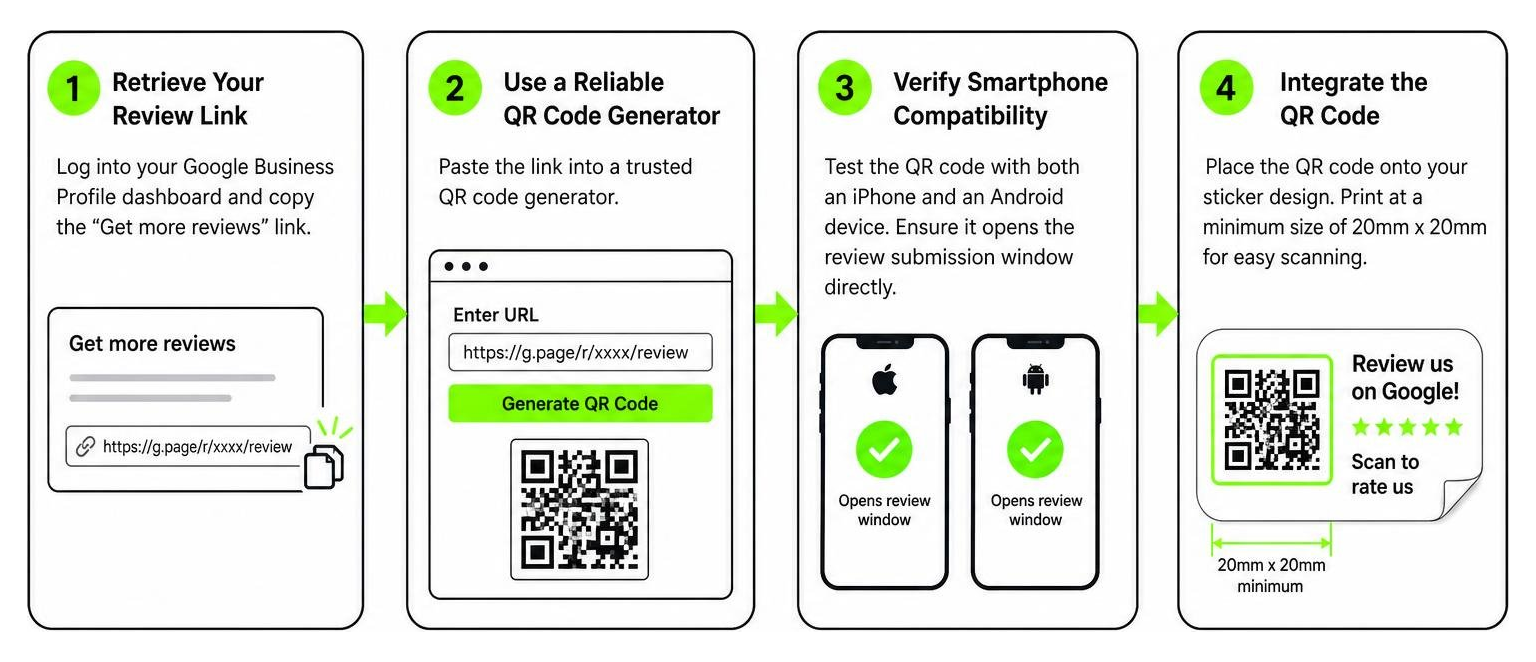
- Retrieve Your Review Link: Log into your Google Business Profile dashboard. Look for the card labeled “Get more reviews” and copy the short URL provided (it usually looks like
https://g.page/r/[unique-id]/review). - Use a Reliable QR Code Generator: Paste this link into a trusted QR code generator.
- Verify Smartphone Compatibility: Test the generated QR code with both an iPhone and an Android device. Ensure it bypasses the search page and opens the active review submission window directly.
- Integrate the QR Code: Place the QR code onto your sticker design, ensuring it is printed at a minimum size of 20mm x 20mm so smartphone cameras can easily scan it.
Guidelines and Best Practices for Using Review Stickers
To protect the integrity of the Google brand and ensure your stickers remain highly effective, you must follow specific design and behavioral guidelines. Failing to do so can result in your reviews being flagged or your Google Business Profile being penalized.
Rules for Using the Rate Us on Google Sticker
Google has strict trademark rules regarding the use of its logo and brand assets. If you are creating custom stickers, you must adhere to the official guidelines discussed in community resources like how do i get “review us on google” stickers?.
- Do Not Modify the Google Logo: Never warp, recolor, crop, or add drop shadows to the official Google “G” icon or wordmark.
- Maintain Clear Space: Keep a designated “clear space” around the Google logo, free of other text, graphics, or busy background patterns.
- Avoid Endorsement Claims: Your sticker design must never imply that Google endorses, sponsors, or partners with your business. It should strictly act as a portal for user-generated feedback.
- Consistent Sizing: If you display the Google icon alongside other social media icons (like Facebook or Instagram), ensure they are all the same size and visual weight.
Following these rules is a key part of professional Reputation Management. It shows your customers that you respect brand standards, which builds additional trust before they even write their review.
| Feature / Aspect | Official Google Stickers (Free) | Custom Third-Party Stickers (Paid) |
|---|---|---|
| Cost | 100% Free | Varies ($5 – $50+ per pack) |
| QR Code Integration | No (Must add manually) | Yes (Pre-linked by manufacturer) |
| NFC Technology | No | Yes (Available on premium options) |
| Branding Customization | None (Standard Google template) | Full (Add logo, match brand colors) |
| Durability | Standard paper/vinyl | Heavy-duty, weatherproof vinyl |
Best Practices for Asking Customers for Reviews
Having a sticker is only half the battle; you also need to know how to ask. The way you prompt your customers can make the difference between a ignored sticker and a steady stream of 5-star ratings.
- Nail the Timing: Ask for the review immediately after a positive experience. For a home services business in Helena, AL, this might be right after the technician finishes repairing an HVAC system and shows the homeowner the completed work.
- Train Your Staff: Encourage your team to point out the sticker. A simple, “If you’re happy with our work today, it would mean the world to us if you could scan this sticker on your way out and share your experience!” goes a long way.
- Never Offer Incentives: Google’s terms of service strictly prohibit offering discounts, freebies, or gift cards in exchange for reviews. Keep your requests honest and focused on real feedback.
For more strategies on capturing authentic client feedback, check out our guide on Getting 5-Star Reviews.
Strategic Placement and Tracking for Maximum Reviews
To maximize the return on your investment, you must place your stickers where they naturally catch the customer’s eye during moments of high satisfaction.
Furthermore, you should track how well your stickers are performing so you can adjust your strategy over time. This approach is highly effective for service-based businesses, as outlined in our article on How to Get More Online Reviews for Your Pest Control Business.
High-Traffic Placement Locations
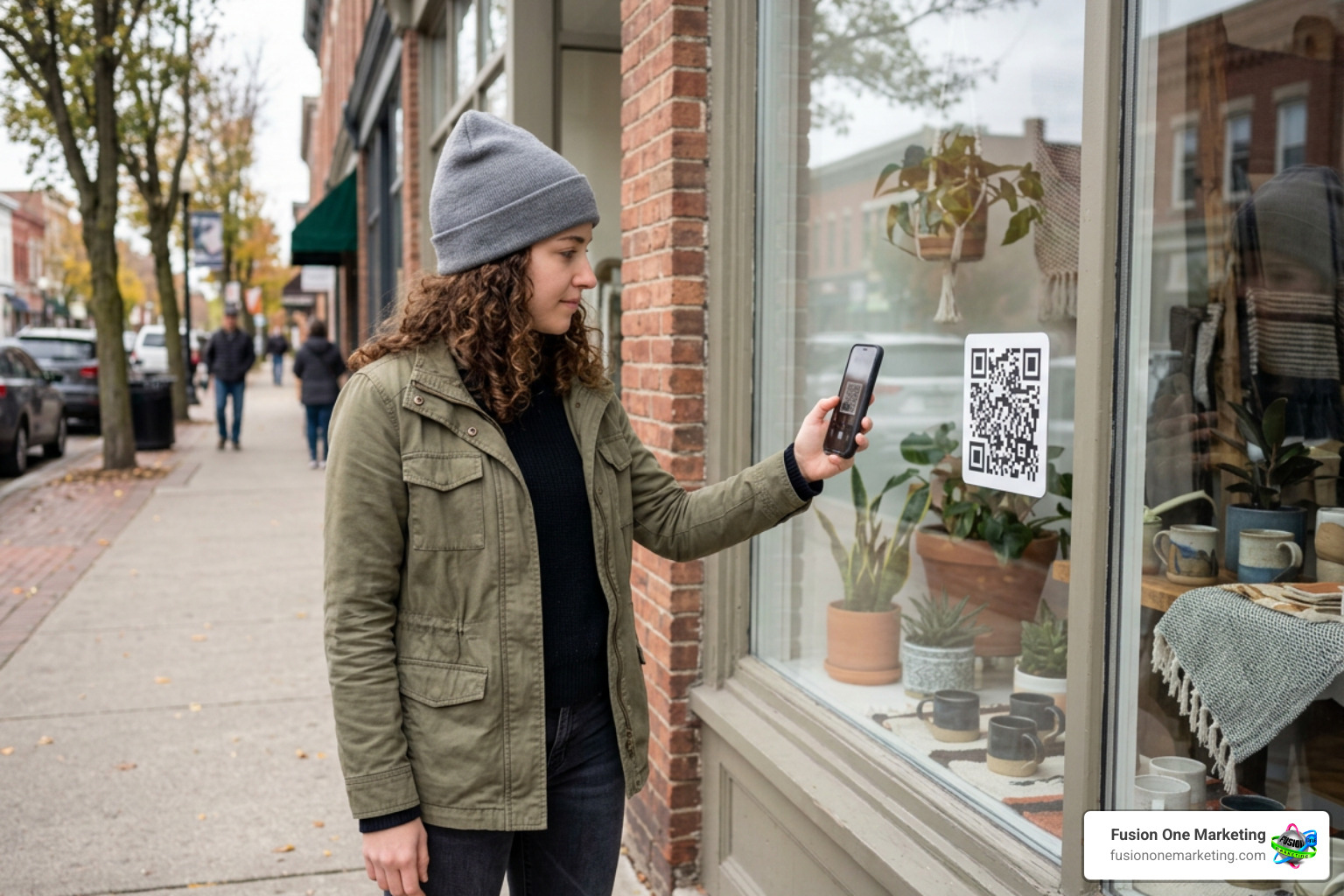
Your stickers should be positioned at key physical touchpoints where customers naturally pause. Excellent high-traffic locations include:
- The Checkout Counter or Reception Desk: This is the most common and effective location, as customers are already completing their transaction and have their phones handy.
- Product Packaging and Shipping Boxes: If you ship physical goods, placing a custom label on the box corner transforms a standard delivery into an interactive review opportunity. You can source specialized rolls for this, such as a Google Review QR Code Sticker Roll with Google … | truzzer.
- Invoices and Receipts: Printing a small review QR code directly on the bottom of physical invoices or service receipts keeps the request front and center.
- Entrance and Exit Doors: Placing a durable, weatherproof decal on your front door catches customers on their way out when their positive experience is fresh in their minds.
Measuring Sticker Effectiveness
How do you know if your stickers are actually driving reviews? By using smart tracking methods:
- Use Dynamic QR Codes: Unlike static QR codes, dynamic QR codes allow you to change the destination URL at any time and track scan metrics (such as the number of scans, time of day, and device type).
- Apply UTM Tracking Parameters: Append UTM codes to your Google review link (e.g.,
?utm_source=qr_sticker&utm_medium=physical_counter). While Google Business Profile reviews don’t show UTMs directly in your public profile, you can track the traffic flow if you direct users to a review landing page on your website first. - Monitor Review Volume Spikes: Keep an eye on your Google Business Profile analytics. If you place new stickers in your Huntsville showroom and notice a 30% increase in monthly reviews shortly after, you can safely attribute that growth to your physical prompts.
Frequently Asked Questions About Google Review Stickers
Can I use NFC technology with my Google review stickers?
Yes! You can purchase premium stickers that feature both a printed QR code and an embedded NFC chip. This dual-technology setup ensures universal compatibility. Customers with older phones can scan the QR code, while those with modern smartphones can simply tap the sticker to open your review page instantly.
If you are looking for high-quality, durable hardware that supports this, you can Buy Google Review Sticker – Premium NFC & QR Review Stickers. These premium options are weatherproof, designed to last over 12 months, and can even be reprogrammed if your review link ever changes.
Do I need a Google Business Profile to use these stickers?
Absolutely. A fully active and verified Google Business Profile (formerly Google My Business) is mandatory. Without it, you will not have a dedicated review link or a Google Maps listing for your customers to rate.
If you need a simple, durable physical sticker that is pre-programmed to link directly to your verified profile, consider checking out the EasyRate Google Review Sticker – Easyrate webshop. It is a great plug-and-play option for local businesses looking to build trust and boost their local search rankings without dealing with complex setup processes.
Can I customize the official Google-provided stickers?
No. The official window stickers and printable materials generated through the Google Business Profile Marketing Kit cannot be customized. They come in fixed templates with pre-determined colors, fonts, and layouts. If you want to add your own company logo, use custom brand colors, or alter the call-to-action text, you must use a third-party design tool and print your stickers independently.
Conclusion

In today’s digital landscape, your online reputation is your most valuable asset. With 89% of consumers stating that checking online reviews is a regular part of their buying journey, you cannot afford to leave your feedback collection to chance.
Implementing a rate us on Google sticker with a QR code is a simple, cost-effective, and highly efficient way to turn everyday customer moments into powerful 5-star testimonials. Whether you choose to use the free official Google templates or invest in custom, branded NFC stickers, the key is consistency and strategic placement.
At Fusion One Marketing, we specialize in helping local businesses across Birmingham, Huntsville, and Helena, AL, dominate their local markets through our comprehensive “Digital Domination” program. We integrate local SEO, custom web design, social media, and reputation management to drive real, measurable growth for your business.
Ready to scale your online presence and attract more local customers? Let us help you build a robust review-generation strategy. Read our detailed guide on How to Get More Company Reviews and Grow Your Business or reach out to our team today to get started!