

Why Photos and Media Matter for Google Reviews
When online shoppers look for local services, visual proof instantly builds consumer trust. A glowing five-star rating with detailed text is great, but adding visual feedback takes credibility to another level. Whether it is a before-and-after photo of a HVAC installation or a crisp image of a freshly manicured lawn, photos bridge the gap between promises and actual results.
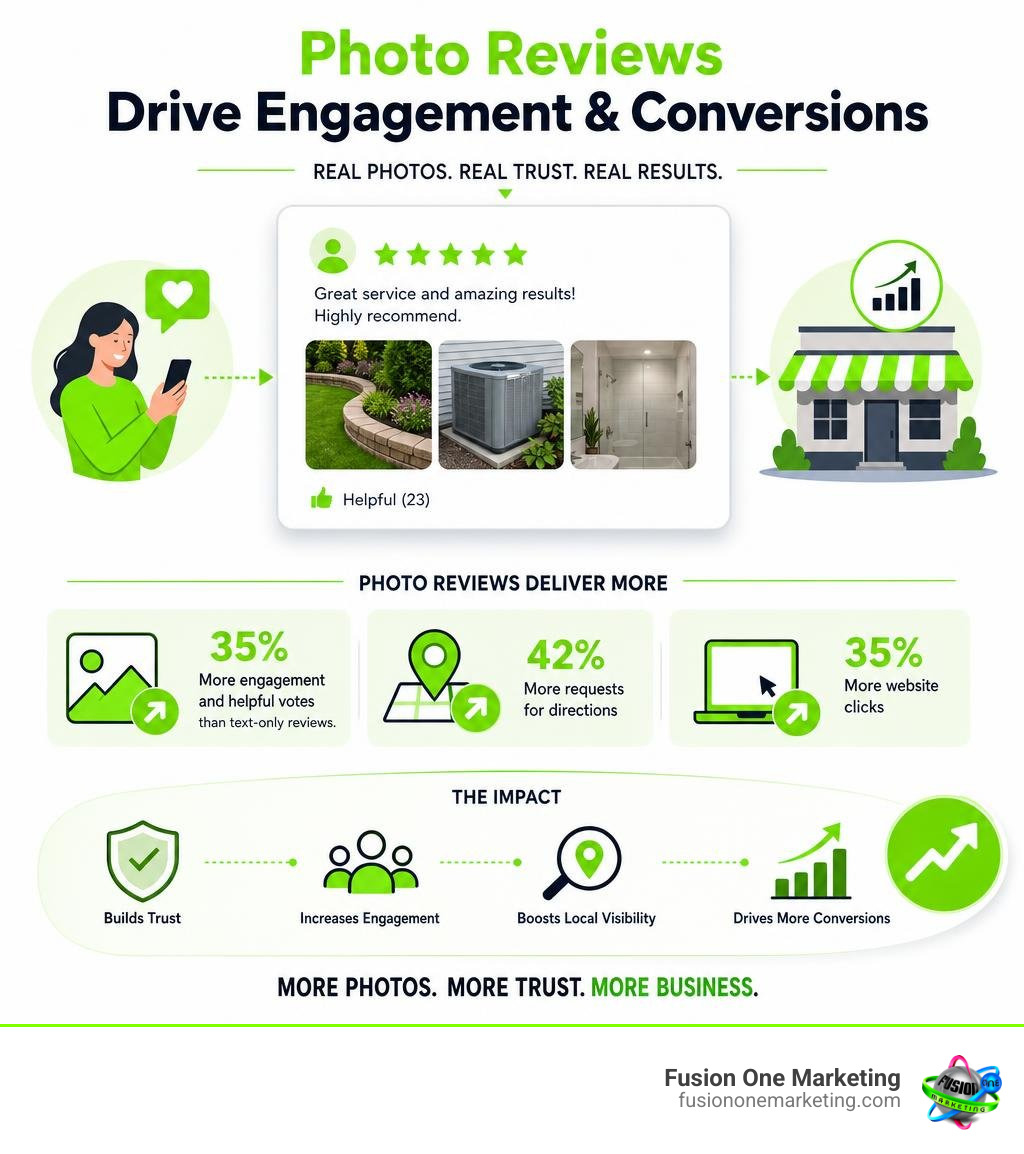
At least 75% of consumers check online reviews before supporting a local business, and over 80% turn directly to Google to find them. Photos play a massive role in driving those decisions. Research shows that reviews featuring images receive approximately 35% more engagement and helpful votes than text-only reviews. Furthermore, Google Business Profiles featuring photos experience 42% more requests for directions and 35% more website clicks.
Understanding the importance of online reviews means recognizing that visual feedback helps both sides of the transaction. For customers, it offers an authentic peek into what they can expect. For businesses, knowing how to rate a business on google in under two minutes and encourage image uploads creates a compounding benefit for local search engine optimization (SEO) and online presence.
How to Add Photo to Google Review on Any Device
Uploading pictures alongside your feedback is straightforward whether you prefer using a smartphone on the go or a desktop computer at home. Below is a breakdown of how to add photo to google review across all major devices.
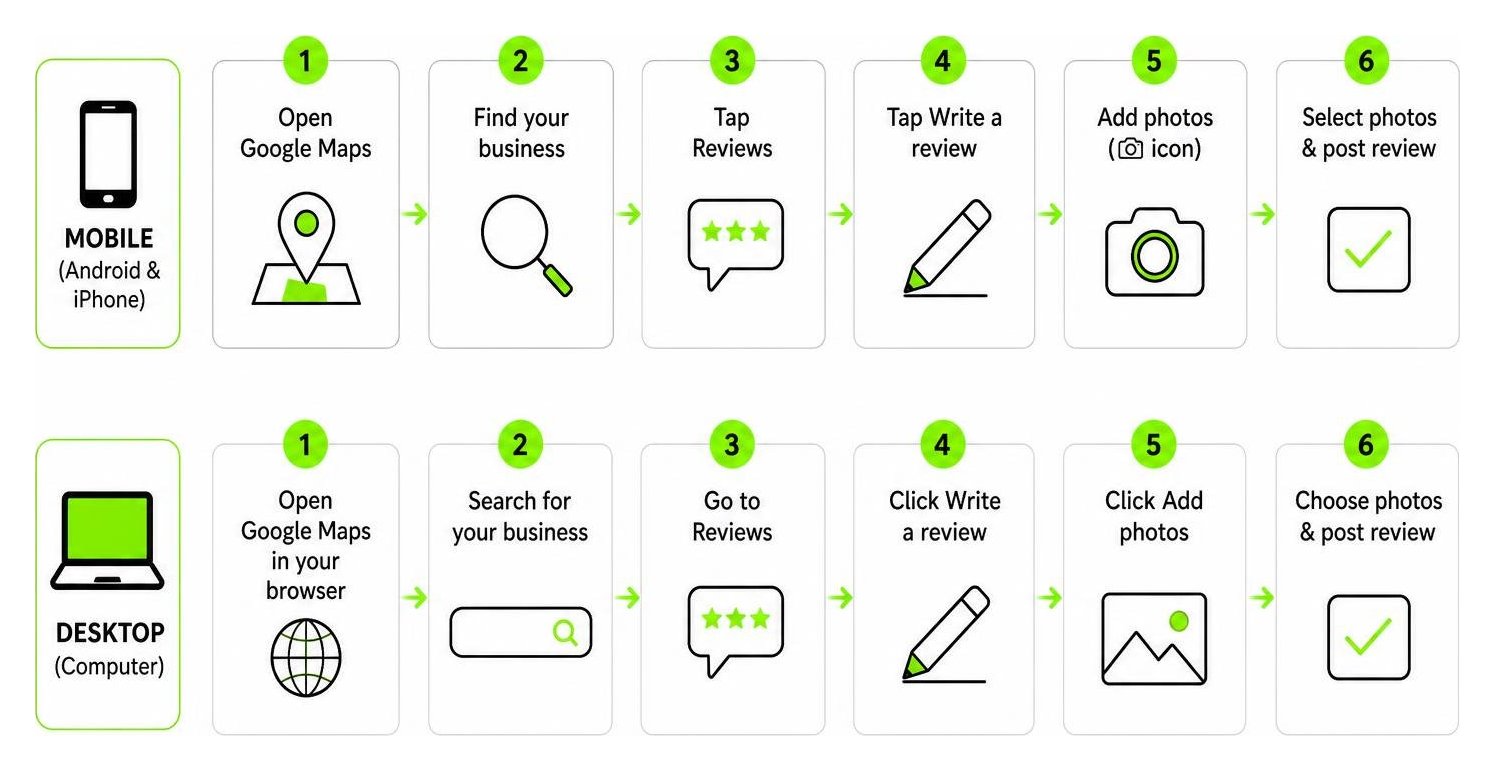
How to Add Photo to Google Review on Mobile (Android & iPhone)
Mobile devices make snapping and sharing real-time photos effortless. Whether you are using an Android phone or an iPhone, the steps within the Google Maps app are nearly identical:
- Open Google Maps: Launch the Google Maps app on your device and ensure you are logged into your primary Google account.
- Search for the Business: Type the business name or address into the search bar and select the correct local listing.
- Navigate to Reviews: Scroll down on the business profile card until you see the Reviews tab, or tap Rate and review.
- Choose Your Rating: Select a 1-to-5 star rating and enter your written experience in the text box.
- Tap the Camera Icon: Tap the Add photos or camera icon located below the review box.
- Select Your Photos: Grant device permissions if prompted, then select up to 10 photos from your gallery or tap the camera icon to capture a new photo on the spot.
- Confirm and Post: Once your images load into the review composer, tap Post in the top right corner to publish your photo-enhanced review.
How to Add Photo to Google Review on Desktop
If you have photos saved on your PC or Mac, you can upload them using any modern web browser via Google Search or Google Maps:
- Go to Google Maps or Google Search: Open Google Maps in your desktop browser and sign into your Google account.
- Find the Business: Search for the company name in the search bar.
- Select “Write a review”: Click on the business listing to open its full profile panel, scroll to the review section, and click Write a review.
- Add Text and Media: Click the 1-to-5 star scale to set your rating, type your comments, and click the camera icon labeled Add photos.
- Upload Files: Drag and drop your image files directly into the pop-up window, or use your desktop file explorer to choose photos. Hold
Ctrl(Windows) orCmd(Mac) to select multiple images at once. - Publish: Click Post to make your review and media visible publicly.
How to Edit, Add, or Remove Photos from Existing Reviews
Have you already published a review and realized later that you forgot to attach photos? Or maybe you accidentally included a blurry snapshot you want to remove? Fortunately, Google Maps makes updating existing feedback simple.
Adding Photos to a Previously Published Review
You do not need to delete a review to attach new pictures later. You can update your submission directly through your user contributions page:
- Open Google Maps on mobile or desktop and ensure you are signed in.
- Click or tap your profile avatar in the upper corner and select Your profile or Your contributions.
- Navigate to the Reviews tab to see your full history of posted feedback.
- Locate the specific review you wish to modify, tap or click the three-dot menu icon next to it, and choose Edit review.
- Click or tap the camera/photo icon, select the new images you want to append, and select Post to update your published submission.
Note: Editing a review updates its visible post date to the current date on Google Maps.
Deleting Specific Photos Without Deleting Review Text
If you want to remove a single photo while leaving your star rating and written review completely intact, you can delete individual thumbnails easily.
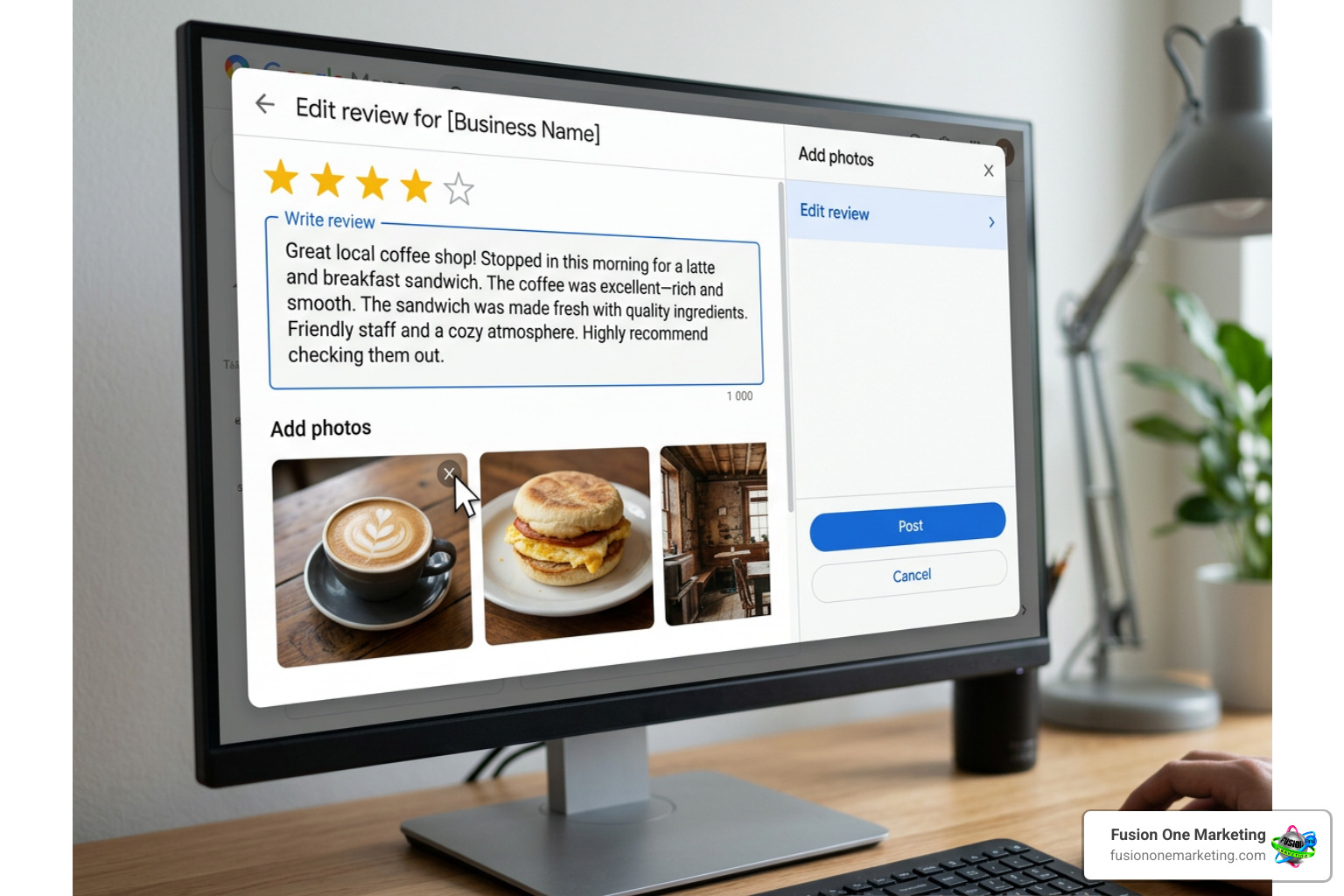
- Access your review via Your contributions > Reviews.
- Select Edit review from the three-dot options menu.
- Locate the photo thumbnail grid inside the editing window.
- Tap or click the small X or trash icon overlay on the specific photo you want to delete.
- Save your changes by selecting Post or Save. The photo will be removed immediately from Google Maps and Google Search while keeping your text feedback visible.
Google Review Photo Requirements and Troubleshooting Upload Errors
To maintain quality across its mapping platform, Google enforces technical guidelines and automated moderation algorithms. If your images do not adhere to these criteria, your upload may fail or be rejected.
| Parameter | Recommended Specification | Acceptable Range / Limits |
|---|---|---|
| File Format | JPG / JPEG | PNG, HEIC, WebP |
| Maximum File Size | Under 10 MB per image | Up to 75 MB – 100 MB max |
| Minimum Resolution | 1024 x 1024 pixels | Minimum width of 720 pixels |
| Quantity Limit | 1 to 5 clear photos | Maximum 10 photos per review |
| Aspect Ratio | Standard square or 4:3 landscape | Avoid extreme vertical/panoramic crops |
Troubleshooting Common Upload Failures
If you encounter errors when trying to add photo to google review, run through this troubleshooting checklist:
- Check App Permissions: Ensure the Google Maps app has permission to access your mobile device’s camera and storage gallery in your system settings.
- Inspect Connection and File Size: High-resolution photos taken on modern smartphones can exceed file size limits. Compress large files or switch to a stable Wi-Fi connection.
- Clear App Cache: Glitches in local app cache can block uploads. Go to your phone settings, find Google Maps, clear its storage cache, and restart the app.
- Automated Moderation Filters: Google uses automated systems to screen photos. Images containing excessive text overlays, logos, watermarks, duplicate content, personal identification (like visible license plates or driver’s licenses), or restricted private areas will be rejected automatically.
- Account Verification: Ensure you are properly logged into an active Google account. Unauthenticated or flagged accounts may have media posting privileges temporarily suspended.
What Business Owners Can Do About Customer Review Photos
Visual user-generated content provides immense benefits for local business listings, but managing customer uploads requires an understanding of Google’s platform policies.
It is critical to remember that business owners cannot write reviews for their own listings or post reviews under personal accounts to artificially pump up visual content. Doing so directly violates Google Business Profile Terms of Service. Knowing google business profile reviews not showing up heres why often points back to strict policy enforcement around self-reviews or prohibited content.
Instead, local businesses should encourage real clients to leave visual reviews ethically by providing exceptional service and sending post-service follow-up messages. If an unhappy customer uploads a photo alongside negative feedback, business owners should learn how to handle negative feedback online by replying professionally rather than attempting to hide legitimate customer photos.
How Businesses Can Flag Inappropriate Photos
While a business owner cannot directly delete a photo attached to a customer’s review, they can report images that violate Google’s content policies (e.g., explicit content, off-topic photos, photos of the wrong business, or copyright infringement).
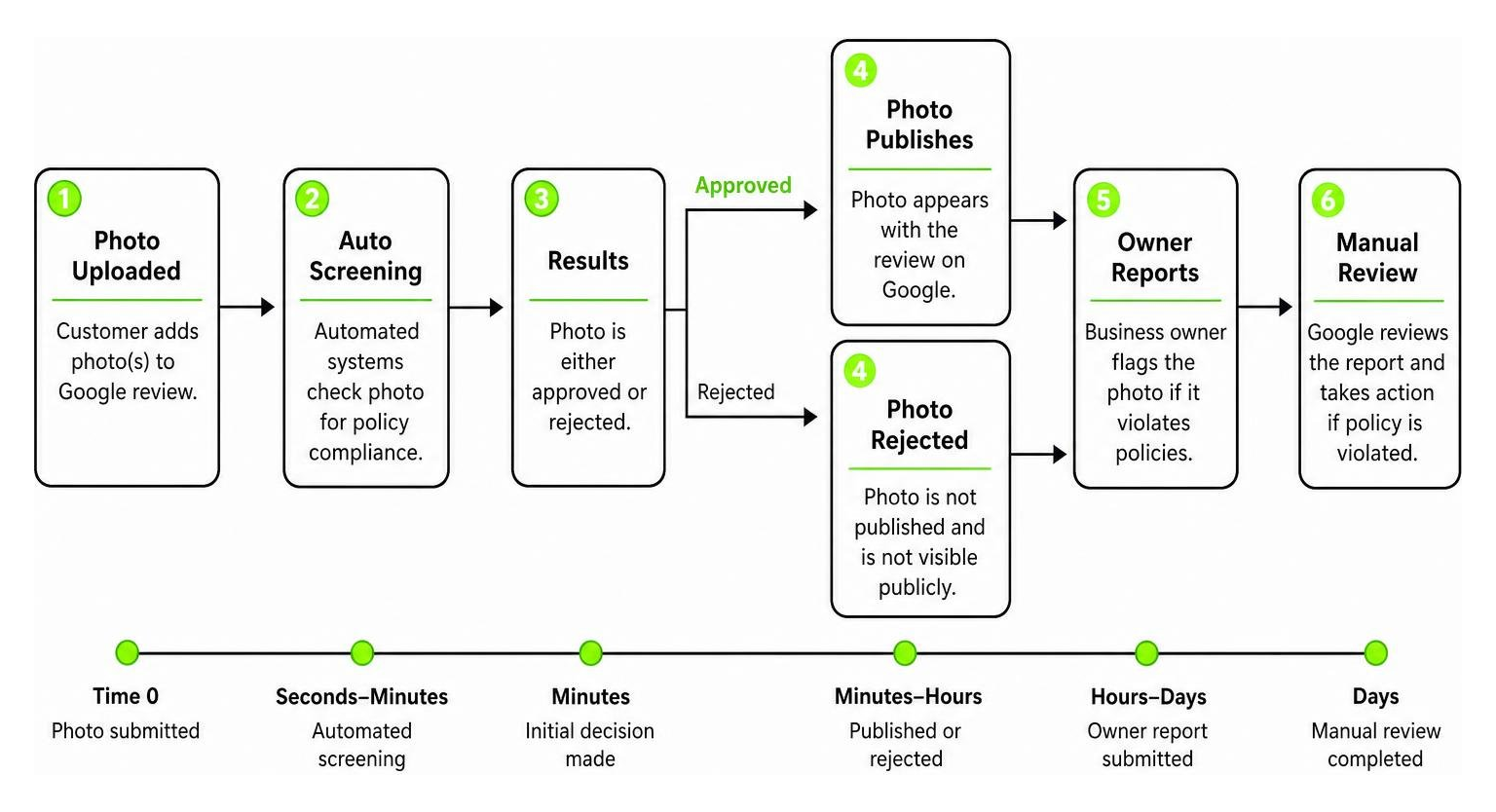
To flag a non-compliant customer photo:
- Log into your verified Google Business Profile or locate the business via Google Maps.
- Locate the photo in the customer’s review or under the profile’s photo tab.
- Click the three-dot menu on the photo display and select Report a problem or Flag as inappropriate.
- Select the specific policy violation (e.g., Off-topic, Spam, Profanity, or Privacy issue) and submit your report.
Google evaluates reported media within 5 to 20 business days. If the image breaches community standards, Google will remove it permanently.
Frequently Asked Questions About Review Photos
Can a business add or remove photos directly from a customer’s Google review?
No. Business owners cannot edit customer reviews, delete customer-uploaded photos, or append photos to someone else’s written feedback. Businesses can upload their own official photos directly to their Google Business Profile media gallery, but managing customer reviews is restricted to flagging policy violations for Google’s moderation team to review.
Why won’t my photo upload to my Google review?
Upload issues usually occur due to poor network connectivity, file sizes exceeding limits, using unsupported file extensions, disabled location/storage app permissions, or triggering Google’s automated content filters (such as posting screenshots, heavy promotional text, or copyrighted images).
Can I delete a photo without deleting my written Google review?
Yes. Open Google Maps, navigate to Your contributions > Reviews, find your review, and select Edit review. Click or tap the photo thumbnail you wish to delete, select the trash or X icon, and save your changes. Your written text and star rating will remain published without the deleted image.
Conclusion
Visual reviews offer an unmatched layer of authenticity in local search. Knowing how to add photo to google review empowers customers to share honest, visual proof while helping local businesses stand out on Google Maps and Search. Highlighting real-world results through media builds trust faster than text alone, making visual user-generated content a cornerstone of modern reputation management.
At Fusion One Marketing, we help home services companies and local businesses master their digital footprint through integrated SEO, web development, and local review strategies. If you are ready to expand your online reach, learn how to get more company reviews and grow your business with our proven team today!