Make Your Discord Server Logo Easy to Recognize
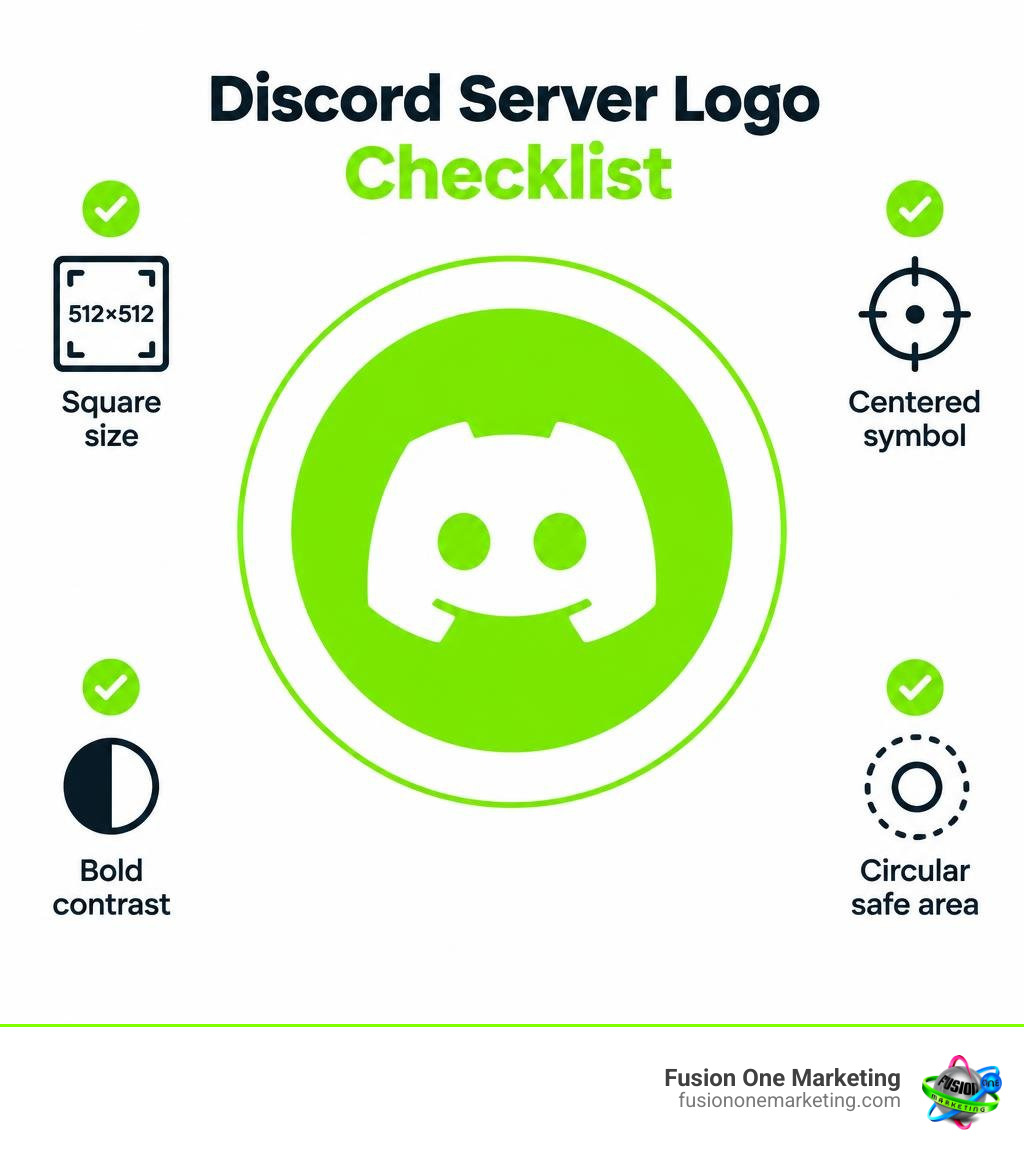
Create a 512 x 512 pixel square logo with one bold symbol, high color contrast, and plenty of empty space around the edges. Discord displays server icons as small circles, so keep the important part of your design in the center 70-80% of the image. Test it at a tiny size before you upload it.
A strong Discord server logo helps people spot your community quickly in a crowded server list. For a home service business, that may mean using a simple initial, a clean house, wrench, roofline, or another symbol that connects directly to what you do. Avoid small text, thin lines, busy photos, and details that disappear at 48 x 48 pixels.
Your icon is not the whole brand, but it is often the first visual cue a prospective member sees. A clear, repeatable mark can also guide the colors and style of your banner, role icons, social profiles, and marketing materials.
I am Rob Humm, a digital marketing professional with experience helping local businesses improve visibility and build stronger online brands. In this guide, I will show you how to create a Discord server logo that looks professional, stays clear at small sizes, and supports your wider marketing identity.
Technical Specifications for Your Discord Server Logo
When setting up your Discord space, you cannot simply throw any square image into your settings and hope for the best. Discord’s interface applies strict scaling rules and compression algorithms across desktop, web, and mobile clients. Understanding these requirements ensures your server looks polished rather than pixelated.
The golden rule for Discord server artwork is the 1:1 aspect ratio. While Discord will display your server icon as a tiny 48×48 pixel circle in the left-hand navigation sidebar rail and a 128×128 pixel circle inside the server header and chat embeds, you should design your source artwork at 512×512 pixels. This larger working canvas guarantees your graphics stay razor-sharp on high-density Retina and 4K mobile displays. If you upload an image smaller than 128×128 pixels, Discord stretches the file, resulting in an immediate loss of visual quality.
File formats also play a massive role in visual clarity:
- PNG (Portable Network Graphics): This is the ideal format for standard static server icons. PNG provides lossless compression, meaning your flat vector art, sharp edges, and solid brand colors remain crisp without noisy compression artifacts.
- JPEG/JPG: Acceptable for complex, photographic backgrounds, but avoid it for illustrative logos. Repeated compression often leaves a muddy haze around solid shapes and bold letters.
- GIF (Graphics Interchange Format): Required if you intend to use an animated icon. The file must loop smoothly and stay under platform upload thresholds.
- WebP: Discord supports modern WebP uploads, which provide small file sizes with clean transparency.
To help you organize your broader community branding assets, review how your icon measures up against other critical Discord elements detailed in comprehensive Discord image size guidelines:
| Asset Type | Recommended Upload Size | Minimum Required Size | Display Aspect Ratio | Boost Level Required |
|---|---|---|---|---|
| Server Icon | 512×512 px | 128×128 px | 1:1 (Circle Crop) | None (Static) / Level 1+ (Animated) |
| Server Banner | 960×540 px | 960×540 px | 16:9 (Widescreen) | Level 2 (Static) / Level 3 (Animated) |
| Invite Splash | 1920×1080 px | 1920×1080 px | 16:9 (Full HD) | Level 1 |
| Role Icon | 64×64 px | 64×64 px | 1:1 (Square/Circle) | Level 2 |
| Custom Emoji | 128×128 px | 32×32 px | 1:1 (Max 256 KB) | None (Base Slots) |
| Custom Sticker | 320×320 px | 320×320 px | 1:1 (Exact, Max 512 KB) | None (Base Slots) |
Designing Within the Circular Safe Area
One of the most frequent technical hurdles creators encounter is Discord’s automatic circular mask. You must upload a square file, but Discord trims away the four outer corners. If your graphics extend to the canvas edge, your corners, framing borders, and exterior typography will get sliced off.

To prevent awkward clipping, adhere strictly to the 70–80% center rule. Place your core artwork, monogram, or mascot directly in the geometric center of your 512×512 square, leaving a comfortable ring of negative space around the perimeter. Before you finalize your graphic, run your artwork through quick Discord PFP crop adjustments or apply a temporary circular layer mask in your design program to verify that no critical elements touch the edge.
Static vs. Animated Server Icons
Animated icons instantly attract the eye in a crowded channel rail. However, you can only set an animated GIF as your server icon if your community reaches Server Boost Level 1 or higher.
If you decide to deploy an animated mark, keep these best practices in mind:
- Keep frame counts low: Massive GIF files cause slow loading on mobile connections. Keep the animation short—between 2 to 4 seconds—and ensure it loops seamlessly.
- Subtle motion over aggressive flashing: A subtle rotating shimmer, a blinking eye on a mascot, or a gentle color pulse looks sophisticated. Rapid strobing or chaotic motion will irritate your members and can trigger accessibility issues.
- Reinforce core identity: Animation should enhance your mark, not obscure it. The primary brand shape must remain recognizable in every single frame because why consistent branding matters applies just as much to community hubs as it does to corporate websites.
Core Design Principles for Small-Scale Discord Branding
Designing a mark for Discord requires a distinct mindset. Unlike a billboard or desktop website header where you have thousands of pixels to tell a story, a server icon lives in a 48×48 pixel sandbox. At that microscopic scale, intricate details turn into illegible visual mud.
Simplicity is your greatest asset. When crafting an identity, ask yourself: If someone glances at this icon for half a second while scrolling through thirty other servers, will they instantly recognize mine?
Follow these essential design rules:
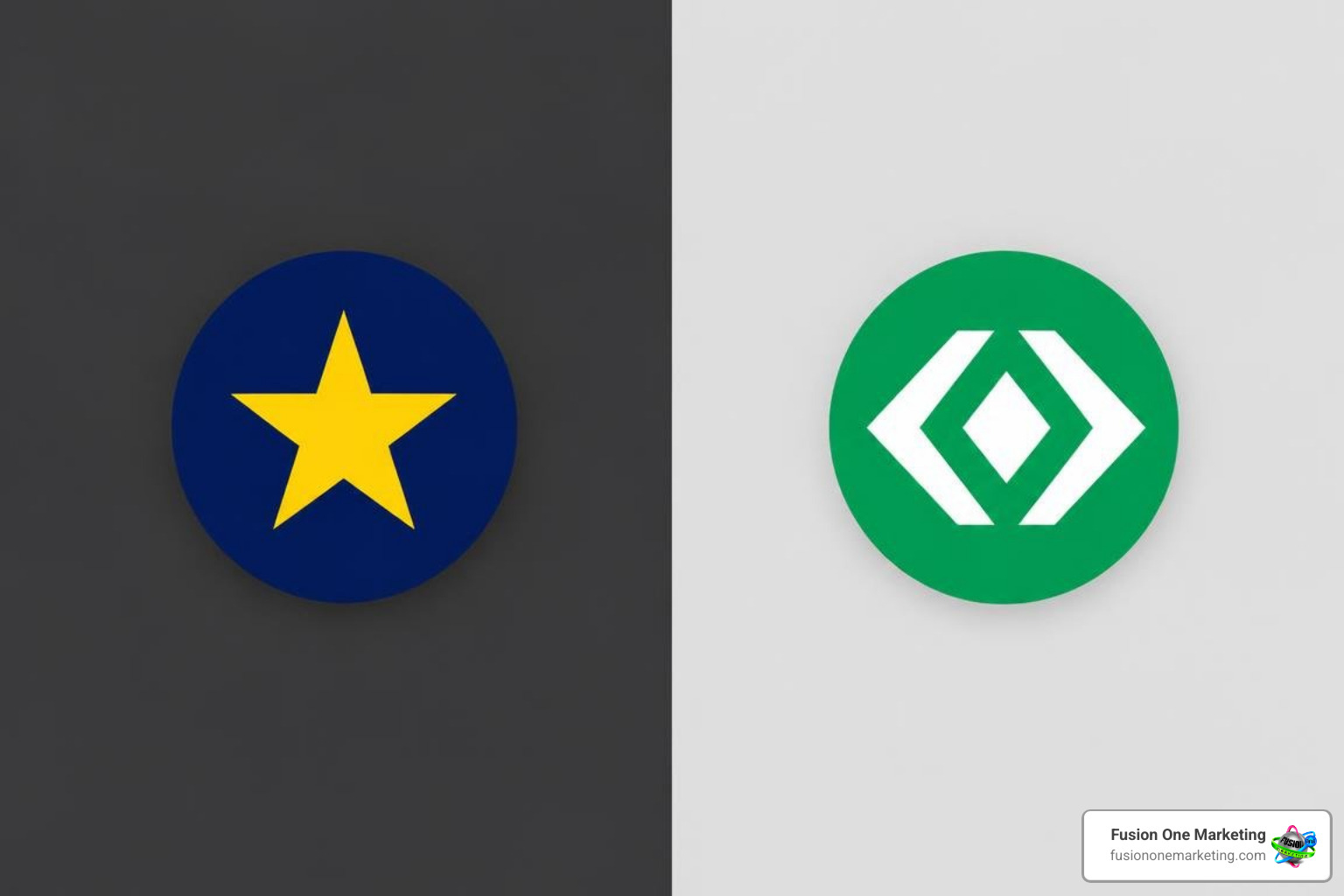
- Limit your color palette: Stick to two or three high-contrast colors. Complementary pairings (such as deep navy and bright gold, or vivid emerald and crisp white) pop against dark backgrounds.
- Eliminate fine linework: Hairline strokes, subtle drop shadows, and complex gradients wash out at 48 pixels. Use thick, bold, intentional strokes.
- Test dark and light themes: Over 80% of Discord users operate on dark mode, but a significant portion still uses the light theme. Ensure your logo features enough internal contrast or a solid backing container so it doesn’t vanish against light grey or pitch black.
- Avoid multi-word text: Squeezing your company’s full legal name or community slogan into a tiny circle is impossible to read. If you must use letters, use a stylized one- to three-letter monogram.
Learning how to make your company stand out with visual branding means making tough editorial choices about what to leave off your canvas so the core mark speaks with clarity.
Choosing Visual Symbols and Monograms
If you run a local service business, trade company, or regional organization across Alabama—from Birmingham and Helena to Huntsville—your server icon needs to signal authority and focus immediately.
For commercial and professional servers, single-letter monograms or clean geometric silhouettes work exceptionally well. A plumbing contractor might use a stylized water droplet intersecting a bold initial; an HVAC specialist might combine flame and snowflake motifs into a clean badge; a remodeling brand might use a crisp roofline silhouette.
Understanding the importance of investing in your logo design prevents you from relying on generic clip-art that makes your community appear amateurish or abandoned.
Harmonizing Your Icon with Banners and Role Badges
Your server icon does not exist in isolation. When users click into your server, they are greeted by your server header, banner, channels, and custom role badges. To deliver a premium experience, weave a unified visual narrative across every asset:
- Server Banners (960×540 px): Unlocked at Boost Level 2, your banner sits at the very top of your channel sidebar. Use the same brand palette and atmospheric imagery that complements your server icon without repeating the exact same square mark. Leave the top 48 pixels relatively quiet visually so your server name text remains legible over the background.
- Invite Splash (1920×1080 px): This 16:9 graphic acts as a digital billboard when prospective members open an invite link in their browser. Feature high-resolution photography, community slogans, or stylized illustrations that reinforce the color scheme established by your server logo.
- Role Icons (64×64 px): Unlocked at Boost Level 2, these tiny badges appear next to usernames in the chat feed and member sidebar. Design them as transparent PNGs with ultra-simple geometric glyphs (shields, stars, wrenches, crowns) that share the exact accent colors of your main logo.
Methods and Tools to Create a Custom Icon
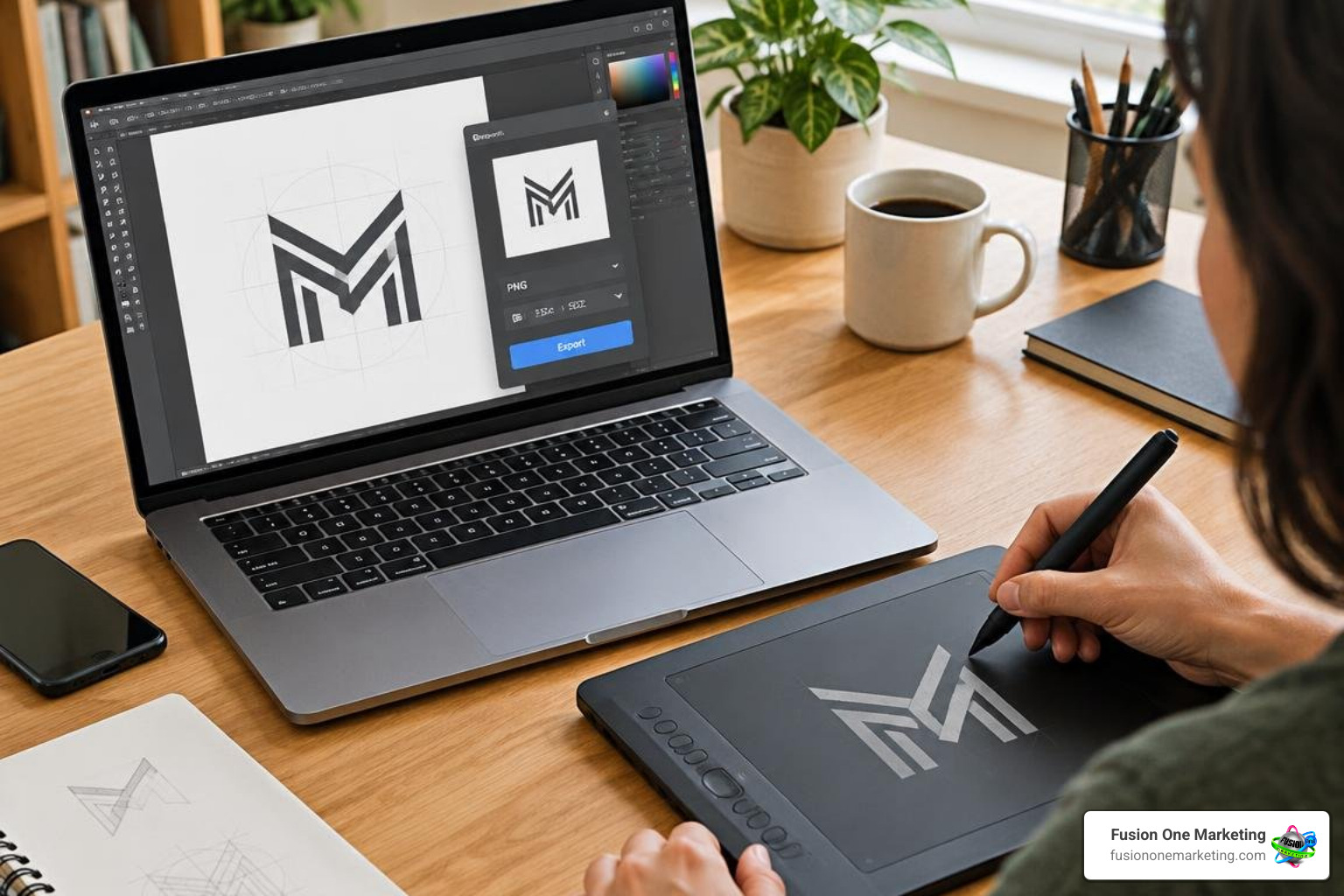
You don’t need a massive graphic design budget to produce an exceptional server mark. Depending on your experience level and technical comfort, several workflows can get the job done.
Here is a comparison of the top design avenues available today:
- Vector Software (Adobe Illustrator, Affinity Designer, Inkscape): The industry standard. Vector tools create math-based paths that scale infinitely without losing quality. You can build clean geometric monograms, manipulate anchor points, and export pristine 512×512 PNGs with alpha transparency.
- Browser-Based Canvas Editors (Canva, Figma): Excellent for fast layout creation. Figma offers precise vector controls and frame masking, allowing you to view a live 48×48 circular preview side-by-side with your 512×512 master canvas.
- AI Text-to-Image Generators: Platforms utilizing modern image models can generate hundreds of creative concepts in seconds. While AI can spark inspiration, you must carefully refine and vectorize the outputs to fix messy linework or awkward symmetry.
Step-by-Step Guide to Upload Your Discord Server Logo
Once you have exported your finalized 512×512 PNG file, uploading it to your community hub takes less than a minute.
Follow these straightforward steps on your desktop client:
- Open Discord and select your server from the left sidebar rail.
- Click the downward chevron icon next to your server’s name at the top of the channel list to open the dropdown menu.
- Select Server Settings (indicated by the gear icon).
- By default, you will land on the Server Profile (or Overview) tab.
- Click the current circular icon or select the Change Icon button.
- Browse your computer, select your 512×512 PNG file, and click open.
- Use Discord’s built-in circular cropping zoom slider to make final adjustments. Ensure your symbol rests completely inside the circular overlay.
- Click Apply, then tap the green Save Changes button that appears at the bottom of the window.
For additional server management details, consult the official Server Profile setup documentation.
Legal and AI Considerations When Generating a Discord Server Logo
AI generation tools make it tempting to type a prompt, export a badge, and call your server branding complete. However, community leaders and business owners must navigate critical legal realities.
First, clarify intellectual property ownership. Many AI image platforms grant commercial use licenses, but under current copyright frameworks, purely AI-generated imagery without substantial human creative input may lack federal copyright protection. If another server owner copies your AI-generated mark, legal recourse can be murky.
Second, beware of trademark infringement. AI models trained on vast internet datasets can inadvertently reproduce recognizable logos from established global gaming franchises, sports teams, or commercial corporations. Using a slightly altered superhero crest or esports team mascot exposes your server to DMCA takedown notices or server suspension under Discord’s Terms of Service.
Always use AI as a brainstorming springboard rather than a finished product. Take the generated composition, redraw it in vector software, customize the geometry, and infuse genuine original artistry. Grasping what branding is and what it isn’t protects your business reputation and ensures your visual identity remains uniquely yours.
How to Extract and Audit Existing Server Icons
Sometimes you need to inspect an existing server’s assets to conduct a brand audit, update legacy graphics, or verify resolution quality. Because Discord caches assets heavily and displays icons at small sizes in the client interface, right-clicking an icon in the chat app usually only yields a low-res thumbnail.
To retrieve original master files from Discord’s Content Delivery Network (CDN), use specialized extraction workflows:
- Obtain a public invite link for the server you wish to inspect.
- Use a dedicated inspection utility such as the Discord Server Icon Downloader via VibeBot.
- Paste the invite link to query Discord’s public API endpoint.
- Download the uncompressed source file in PNG, WebP, or GIF format at resolutions up to 4096×4096 pixels.
Conducting periodic asset audits ensures your team never loses high-resolution source files when server management transitions between community moderators or marketing personnel.
Frequently Asked Questions About Discord Server Logos
Why does my Discord server logo look blurry after uploading?
Blurriness typically happens for three reasons: uploading an image below the recommended 512×512 resolution, including overly intricate details that mush together at 48×48 pixels, or using heavily compressed JPEG files. When Discord downsamples your artwork to fit the sidebar, fine lines and subtle color gradients blend into adjacent pixels. Stick to bold shapes, clean vector paths, and uncompressed PNG exports.
Can I use a transparent background for my server icon?
Yes, Discord fully supports transparent PNG and WebP files for server icons. However, be cautious with floating transparent graphics. If your logo consists of dark text or dark shapes with no background container, it will become invisible to members using Discord’s default dark theme. Conversely, pure white floating text disappears on light theme. To ensure universal legibility, enclose transparent floating marks inside a solid, high-contrast colored circle or shield container.
How often should a community update its Discord server logo?
Your core server logo should remain remarkably consistent so members can instantly find your server in their channel list. Constantly swapping logos confuses your active user base. That said, temporary seasonal variations—such as adding a small winter holiday hat, an autumn leaf tint, or a subtle anniversary banner—keep the community feeling active and fun. Just ensure the underlying silhouette and primary brand colors remain untouched so brand recognition stays intact.
Conclusion
Building a standout digital community requires deliberate visual choices. Your server icon is the digital front door to your community—it sets the tone for your discussions, signals professionalism, and helps your audience locate your brand in an instant. By adhering to a 512×512 square canvas, respecting the circular safe area, selecting high-contrast color palettes, and avoiding tiny visual clutter, you can create a lasting visual mark that members immediately respect.
At Fusion One Marketing, we help businesses establish commanding digital presences through integrated SEO, cutting-edge web design, social community development, and comprehensive brand strategies. Whether you are serving local homeowners across Alabama or cultivating a specialized nationwide customer hub, memorable branding makes all the difference. Explore our guide on 5 essential things to consider when creating a logo to start crafting an iconic visual identity for your business today.