

Why Managing Your Google Maps Contributions Matters for Your Business
If you’ve ever tried to track down my contributions Google reviews, here’s the fastest way to do it:
How to find your Google Maps contributions in 3 steps:
- Open Google Maps and sign in to your Google account
- Tap or click “Your contributions” from the menu
- Select the “Reviews” tab to see everything you’ve posted
That’s it. You can edit or delete any review from that same screen using the three-dot menu next to each entry.
Google Maps has over 2 billion monthly users. Every review you write — or receive — is public and tied directly to your Google account name. For a home services business, that visibility cuts both ways.
Good reviews build trust. Bad ones can quietly cost you jobs.
The challenge is that most business owners don’t realize how much control they actually have. You can manage your own reviews, respond to customer feedback, and even spot patterns in competitor reviews — all from tools that are free and already available.
This guide walks you through all of it, step by step.
What Are Google Maps Contributor Reviews?

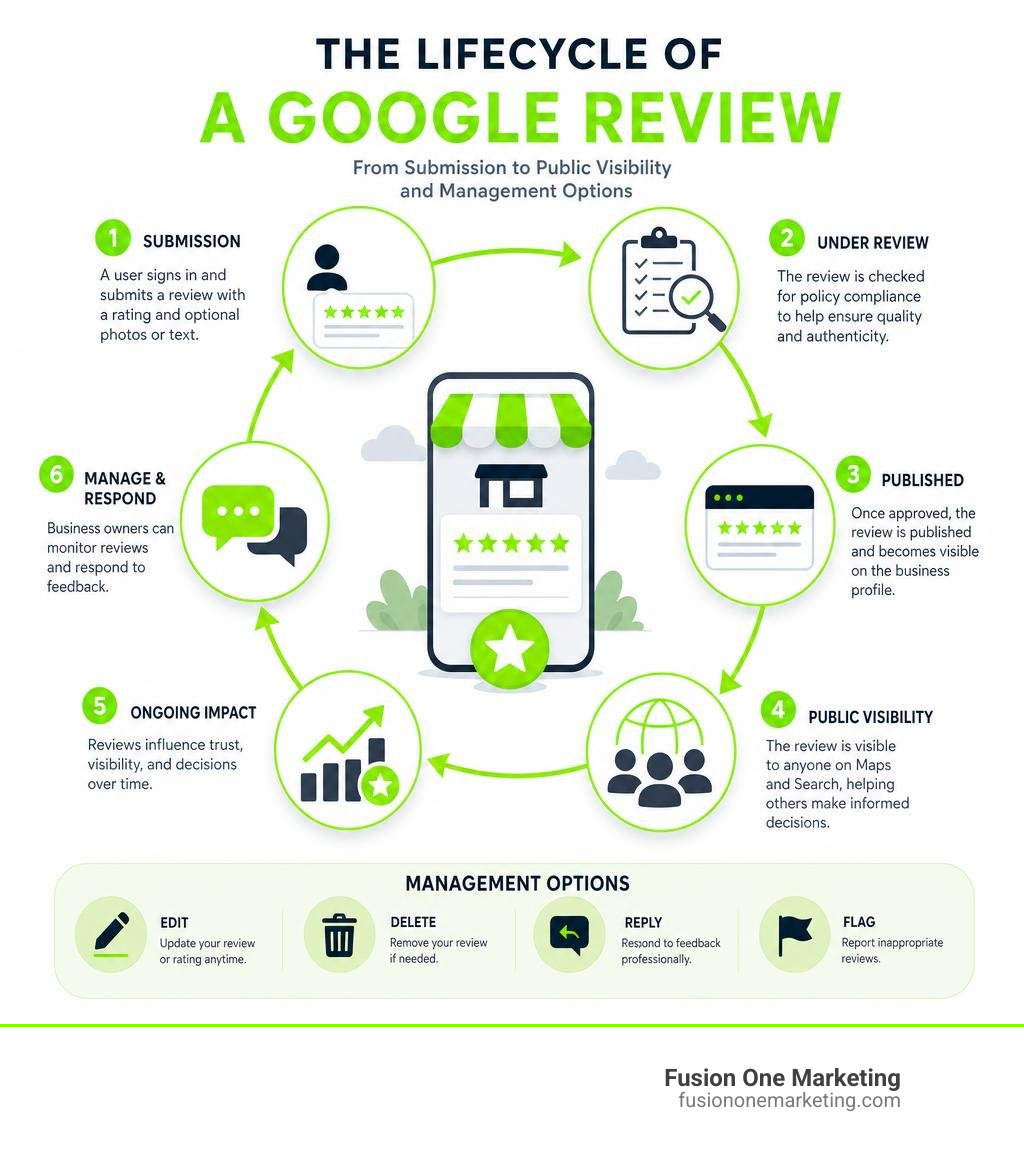
When we talk about Google Maps contributor reviews, we are looking at a system that is slightly more dynamic than standard, one-off customer feedback. A contributor review is any rating, text review, photo, or video uploaded to a Google Business Profile by a user through Google Maps.
The primary difference between a basic customer review and a structured contributor review lies in the profile backing it. Regular reviews might come from casual users who rarely leave feedback. Contributor reviews, however, are tied to a user’s broader public profile, often displaying their standing in the Google Local Guides program, their total contribution count, and their local expertise.
For business owners in Birmingham, Huntsville, and Helena, understanding this distinction is crucial. When a highly active contributor leaves feedback on your profile, Google’s algorithms and potential customers pay closer attention. Review volume and quality are massive local ranking signals. In fact, reviews account for roughly 26% of local pack ranking influence.
To understand why this digital word-of-mouth is so powerful, you can read more about Why Reviews Matter. Every single review acts as a trust signal that search engines crawl and index. If you want to dive deeper into how this feedback loop directly alters search engine result pages, check out our detailed breakdown on Do Google Reviews Impact Your SEO.
Public Visibility and Privacy Considerations
Every contribution made on Google Maps is public. There is no option to publish anonymous reviews. When you search for my contributions Google reviews and look at your active posts, you must realize that anyone clicking on your profile can see:
- Your Google Account name and profile photo.
- A historical archive of other reviews you have written.
- Public photos and videos you have uploaded to various business listings.
- Your Local Guide level, badges, and total points.
This level of transparency helps combat spam, but it also means your location history and brand preferences are visible to the public. If you are concerned about privacy, you can manage your “About me” settings in your Google Account to limit some personal details, but your actual review history and photos will remain tied to your public contributor profile.
How to Find, Edit, and Delete My Contributions Google Reviews

Managing your digital footprint on Google Maps is straightforward once you know where to look. Whether you are a business owner checking your personal review history or a customer wanting to update feedback after a service call, the management portal is highly accessible.
To keep things simple, let’s look at how the management process compares across different devices:
| Feature / Action | Desktop Browser | Mobile App (Android & iOS) |
|---|---|---|
| Access Route | Google Maps side menu or direct URL | Google Maps App > “Contribute” tab |
| Direct URL | google.com/maps/contrib/ | N/A (opens in app) |
| Edit Options | Change rating, rewrite text, add/remove photos | Change rating, rewrite text, add/remove photos |
| Deletion | Instant removal via three-dot menu | Instant removal via three-dot menu |
| View Count | Visible on photos and reviews | Visible on photos and reviews |
Step-by-Step Guide to Accessing My Contributions Google Reviews
If you want to view your past contributions, you can do so quickly on both desktop and mobile platforms.
On a Desktop Browser:
- Open your web browser and navigate to Google Maps.
- Ensure you are signed into the correct Google Account.
- Click the three-line menu icon in the top-left corner.
- Select “Your contributions” from the list.
- Click on the “Reviews” tab to view your complete history.
- Alternatively, you can use the direct shortcut link:
https://www.google.com/maps/contrib/reviews.
On Mobile Devices (Android, iPhone, & iPad):
- Open the Google Maps app.
- Tap your profile picture or initial in the top-right corner, or tap the “Contribute” button located in the bottom navigation bar.
- Tap on your name/profile card to open your public contributor profile.
- Scroll down or select the “Reviews” tab to see your historical ratings.
For official, platform-specific troubleshooting steps from Google, you can refer directly to the Google Maps Help Guide.
How to Edit or Delete My Contributions Google Reviews
People change their minds, businesses improve, and mistakes happen. If you need to modify a review you wrote in the past, Google makes the editing and deletion process very easy.
To Edit a Past Review:
- Navigate to your reviews list under “Your contributions”.
- Find the specific review you want to modify.
- Click or tap the three-dot menu icon next to the review.
- Select “Edit review”.
- Update your star rating, rewrite your text feedback, or add/remove photos.
- Click “Post” to save your changes. Edited reviews will display the edit date as the new publication date.
To Delete a Past Review:
- Locate the review within your contributions list.
- Click or tap the three-dot menu icon.
- Select “Delete review”.
- Confirm your selection. Once deleted, this data is permanently removed from the business profile and cannot be recovered.
For businesses dealing with negative reviews, encouraging a reviewer to update their feedback after resolving an issue is incredibly powerful. To learn how to guide customers through this process and salvage your online reputation, read our guide on How to Turn a Negative Review into a Positive Experience.
Leveling Up with the Google Maps Local Guides Program
To encourage users to keep the map accurate, fresh, and highly detailed, Google created the Local Guides program. This is a free, global community of explorers who write reviews, share photos, answer local knowledge questions, add missing places, and verify local facts.
You can join or manage your participation directly through the Local Guides Program portal.
Earning Points and Unlocking Benefits
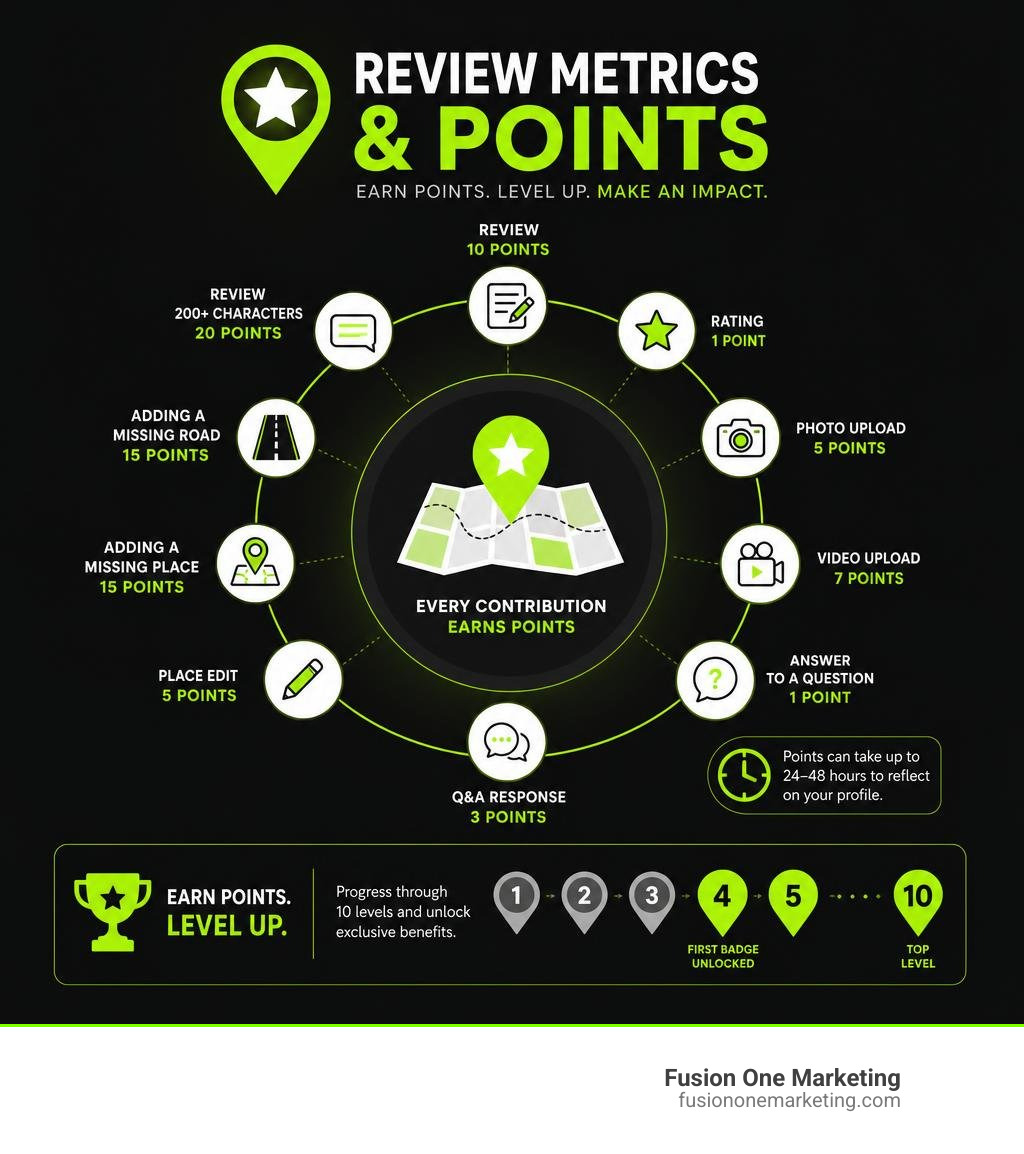
Every time you contribute to Google Maps, you earn points. As your points accumulate, you level up through a 10-tier system. Starting at Level 4, you unlock your first official Local Guides badge, which appears next to your name whenever you post a review.
Here is how the point system breaks down for different types of contributions:
- Review: 10 points per review.
- Review with more than 200 characters: 20 points per review (encouraging detailed, high-quality feedback).
- Rating: 1 point.
- Photo upload: 5 points.
- Video upload: 7 points.
- Answer to a question: 1 point.
- Q&A response: 3 points.
- Place edit: 5 points.
- Adding a missing place: 15 points.
- Adding a missing road: 15 points.
- Fact check: 1 point.
Points can take up to 24 hours (and occasionally 48 hours) to reflect on your profile. While Google used to offer massive incentives like free Google Drive storage, modern benefits focus on early access to new Google features, special community badges, and occasional partner discounts. For local businesses, having a Level 7 or Level 8 Local Guide leave a detailed review is highly valuable, as their reviews are heavily prioritized by Google’s search algorithms.
Programmatic Extraction: Scraping Contributor Reviews for Business Intelligence
For digital marketers, business analysts, and local business owners, analyzing reviews manually is incredibly slow. Programmatic extraction — commonly known as scraping — allows you to pull structured data from Google Maps contributor profiles at scale.
This data is vital for advanced Online Reputation Management, helping brands monitor their digital health, track sentiment trends, and proactively manage customer relations across multiple physical locations.
Why Businesses and Analysts Scrape Contributor Data
Extracting contributor reviews yields incredibly rich datasets that can transform how a business operates. Key use cases include:
- Fraud Detection & Audit Trails: By scraping a reviewer’s full history, analysts can identify patterns of fake reviews. If a profile has left fifty 1-star reviews for plumbing companies across Alabama within 24 hours, it is highly likely a spam network or a malicious competitor bot.
- Competitor Analysis: Scraping reviews left on competitor profiles in Birmingham or Huntsville helps you identify their weak points (e.g., slow response times, pricing complaints) so you can adjust your own marketing and operations.
- Sentiment Analysis: Large datasets allow AI models to scan thousands of reviews to extract common words, customer pain points, and positive trends.
Methods and Limitations of Scraping Contributor Reviews
Scraping Google data directly can be highly complex due to Google’s aggressive anti-bot measures, dynamic page layouts, and frequent CAPTCHAs.
To bypass these hurdles, developers rely on structured APIs like the SerpApi Contributor Reviews API. This tool handles proxy rotation, CAPTCHAs, and layout updates, returning clean, structured JSON data.
If you are a developer looking to build a custom tool, you can read SerpApi’s comprehensive tutorial on How to Scrape Contributor Reviews.
However, programmatic extraction has several notable limitations:
- Result Limits: Google limits public contributor profiles to a maximum of 200 accessible reviews via the web interface and APIs, even if the user has written thousands of reviews historically.
- Data Delays: Cached results may take time to update, meaning real-time scraping requires careful parameter configuration (such as disabling cache layers).
- Terms of Service: Direct, unmanaged scraping of Google Maps without an API can violate Google’s Terms of Service and result in IP bans.
Frequently Asked Questions About Google Reviews
Why can’t I see a contribution I made on Google Maps?
It can be incredibly frustrating to write a detailed review only to find it missing when you log out or look from another device. There are several common reasons for this:
- Moderation Delays: Google uses advanced AI moderation to scan reviews for spam, hate speech, or policy violations. This process can delay public visibility by a few hours to several days.
- Policy Violations: If your review contains phone numbers, URLs, excessive capitalization, or highly repetitive phrases, Google’s automated spam filters may flag and shadowban it.
- Account Fragmentation: You might be signed into a different Google Account than the one you used to write the review. Double-check your active login credentials.
- Business Listing Updates: If a business merges its listings, changes its address, or completely deletes its Google Business Profile, older reviews may disappear.
Can businesses delete reviews they receive?
No. Business owners cannot directly delete reviews left on their Google Business Profile. If businesses could delete negative feedback, the review system would lose all credibility.
However, if a business receives a review that is fake, abusive, off-topic, or violates Google’s Terms of Service, they can flag it.
How to flag an inappropriate review:
- Open Google Maps and find your business listing.
- Locate the offending review.
- Click the three-dot menu icon next to the review and select “Report review”.
- Select the violation reason (e.g., spam, conflict of interest, harassment) and submit.
Google’s moderation team will review the report. If they agree it violates policy, they will remove it.
Are deleted Google reviews recoverable?
Once you manually delete a review from your my contributions Google reviews panel, it is gone forever. Google does not store backup archives of deleted user reviews for recovery, and Google Support cannot restore them for you. If you delete a review by mistake, your only option is to visit the business profile again and write a brand-new review.
Take Control of Your Local Reputation
Managing your Google Maps contributions is more than just a housekeeping task — it is a foundational pillar of modern local SEO and customer trust. Whether you are correcting an old review you wrote or monitoring the digital footprint of your business in Birmingham, Huntsville, or Helena, staying active on Google Maps is essential.
At Fusion One Marketing, we help home services companies, medical practices, and local businesses dominate their markets. Through our comprehensive “Digital Domination” program, we combine advanced local SEO, custom web design, social media management, and paid advertising into a single, high-growth engine.
Ready to secure more positive feedback and outshine your competitors? Learn how to Get More Company Reviews and Grow Your Business with us today.